What is a container?コンテナとは何ですか?
Explanation説明
Imagine you're developing a killer web app that has three main components - a React frontend, a Python API, and a PostgreSQL database. If you wanted to work on this project, you'd have to install Node, Python, and PostgreSQL.あなたが開発している素晴らしいウェブアプリには、主に3つのコンポーネントがあります - Reactフロントエンド、Python API、PostgreSQLデータベースです。このプロジェクトに取り組むには、Node、Python、PostgreSQLをインストールする必要があります。
How do you make sure you have the same versions as the other developers on your team? Or your CI/CD system? Or what's used in production?チームの他の開発者やCI/CDシステム、または本番環境で使用されているものと同じバージョンを確保するにはどうすればよいですか?
How do you ensure the version of Python (or Node or the database) your app needs isn't affected by what's already on your machine? How do you manage potential conflicts?アプリが必要とするPython(またはNodeやデータベース)のバージョンが、あなたのマシンに既にインストールされているものに影響されないようにするにはどうすればよいですか?潜在的な競合をどのように管理しますか?
Enter containers!コンテナの出番です!
What is a container? Simply put, containers are isolated processes for each of your app's components. Each component - the frontend React app, the Python API engine, and the database - runs in its own isolated environment, completely isolated from everything else on your machine.コンテナとは何ですか?簡単に言うと、コンテナはアプリの各コンポーネントのための隔離されたプロセスです。フロントエンドのReactアプリ、Python APIエンジン、データベースなど、各コンポーネントはそれぞれの隔離された環境で実行され、あなたのマシン上の他のすべてから完全に隔離されています。
Here's what makes them awesome. Containers are:コンテナの素晴らしさはここにあります。コンテナは:
- Self-contained. Each container has everything it needs to function with no reliance on any pre-installed dependencies on the host machine.自己完結型です。各コンテナは、ホストマシンに事前にインストールされた依存関係に依存することなく機能するために必要なすべてを持っています。
- Isolated. Since containers are run in isolation, they have minimal influence on the host and other containers, increasing the security of your applications.隔離されています。コンテナは隔離された状態で実行されるため、ホストや他のコンテナに対する影響が最小限に抑えられ、アプリケーションのセキュリティが向上します。
- Independent. Each container is independently managed. Deleting one container won't affect any others.独立しています。各コンテナは独立して管理されます。一つのコンテナを削除しても他のコンテナには影響しません。
- Portable. Containers can run anywhere! The container that runs on your development machine will work the same way in a data center or anywhere in the cloud!ポータブルです。コンテナはどこでも実行できます!あなたの開発マシンで実行されるコンテナは、データセンターやクラウドのどこでも同じように動作します!
Containers versus virtual machines (VMs)コンテナと仮想マシン (VM) の違い
Without getting too deep, a VM is an entire operating system with its own kernel, hardware drivers, programs, and applications. Spinning up a VM only to isolate a single application is a lot of overhead.あまり深く掘り下げずに言うと、VMは独自のカーネル、ハードウェアドライバ、プログラム、アプリケーションを持つ完全なオペレーティングシステムです。単一のアプリケーションを隔離するためだけにVMを立ち上げるのは、多くのオーバーヘッドを伴います。
A container is simply an isolated process with all of the files it needs to run. If you run multiple containers, they all share the same kernel, allowing you to run more applications on less infrastructure.コンテナは、実行に必要なすべてのファイルを持つ単純な隔離プロセスです。複数のコンテナを実行すると、すべてが同じカーネルを共有し、より少ないインフラストラクチャでより多くのアプリケーションを実行できるようになります。
Using VMs and containers togetherVMとコンテナを一緒に使用する
Quite often, you will see containers and VMs used together. As an example, in a cloud environment, the provisioned machines are typically VMs. However, instead of provisioning one machine to run one application, a VM with a container runtime can run multiple containerized applications, increasing resource utilization and reducing costs.非常に多くの場合、コンテナとVMが一緒に使用されます。例えば、クラウド環境では、プロビジョニングされたマシンは通常VMです。しかし、1つのアプリケーションを実行するために1台のマシンをプロビジョニングする代わりに、コンテナランタイムを持つVMは複数のコンテナ化されたアプリケーションを実行でき、リソースの利用率を高め、コストを削減します。
Try it out試してみる
In this hands-on, you will see how to run a Docker container using the Docker Desktop GUI.このハンズオンでは、Docker Desktop GUIを使用してDockerコンテナを実行する方法を見ていきます。
Use the following instructions to run a container.以下の手順に従ってコンテナを実行してください。
Open Docker Desktop and select the Search field on the top navigation bar.Docker Desktopを開き、上部のナビゲーションバーのSearchフィールドを選択します。
Specify
welcome-to-dockerin the search input and then select the Pull button.welcome-to-dockerを検索入力に指定し、次にPullボタンを選択します。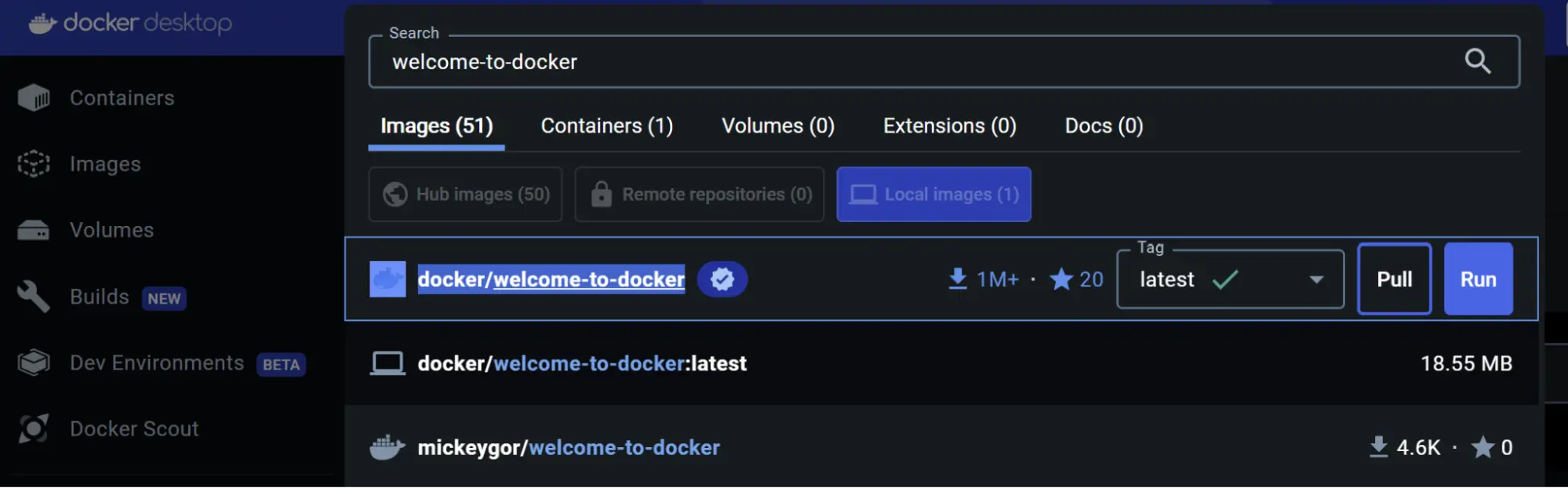
Once the image is successfully pulled, select the Run button.イメージが正常にプルされたら、Runボタンを選択します。
Expand the Optional settings.Optional settingsを展開します。
In the Container name, specify
welcome-to-docker.Container nameにwelcome-to-dockerを指定します。In the Host port, specify
8080.Host portに8080を指定します。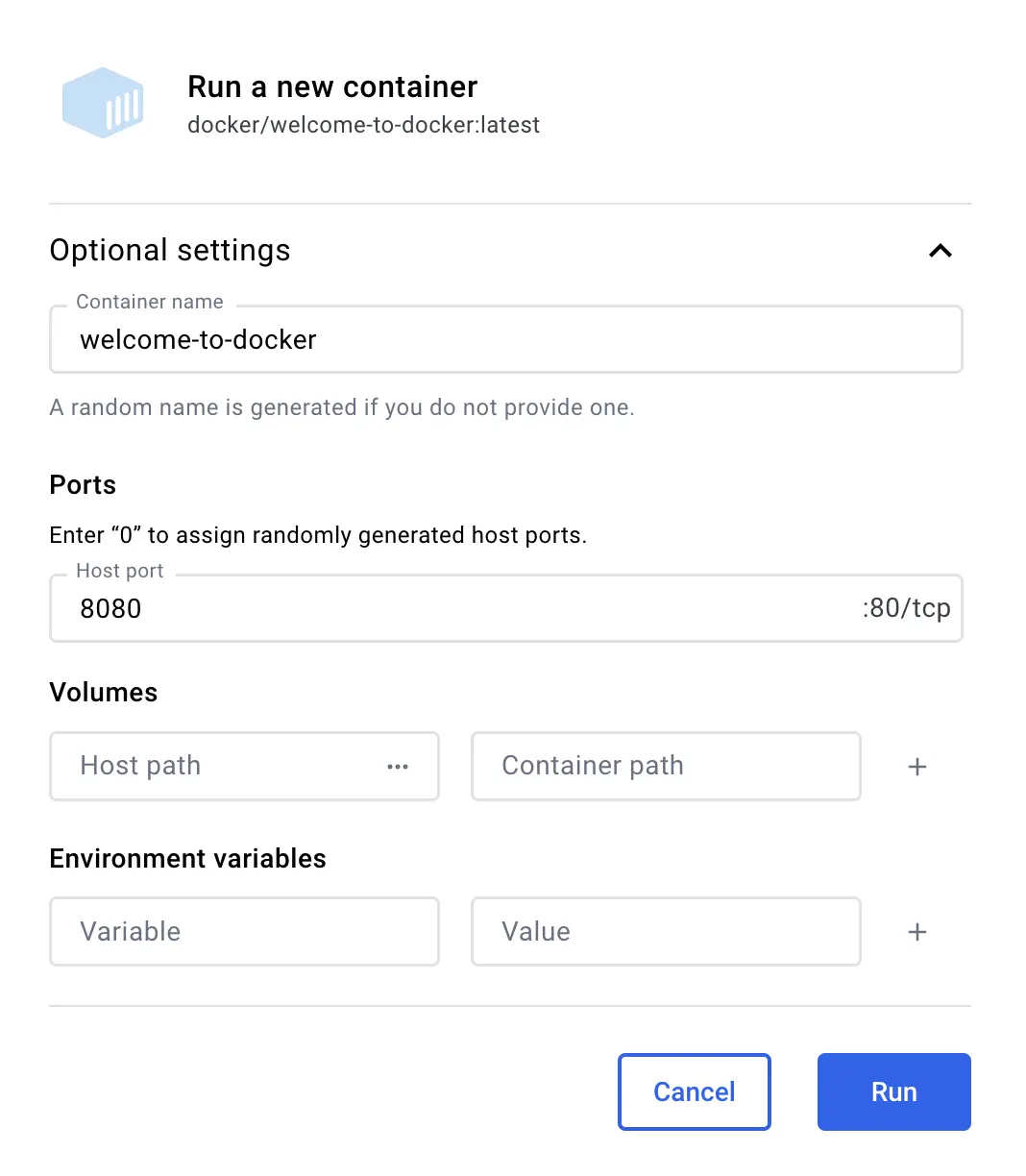
Select Run to start your container.Runを選択してコンテナを開始します。
Congratulations! You just ran your first container! 🎉おめでとうございます!あなたは初めてのコンテナを実行しました! 🎉
View your containerコンテナを表示
You can view all of your containers by going to the Containers view of the Docker Desktop Dashboard.Docker Desktop DashboardのContainersビューに移動することで、すべてのコンテナを表示できます。
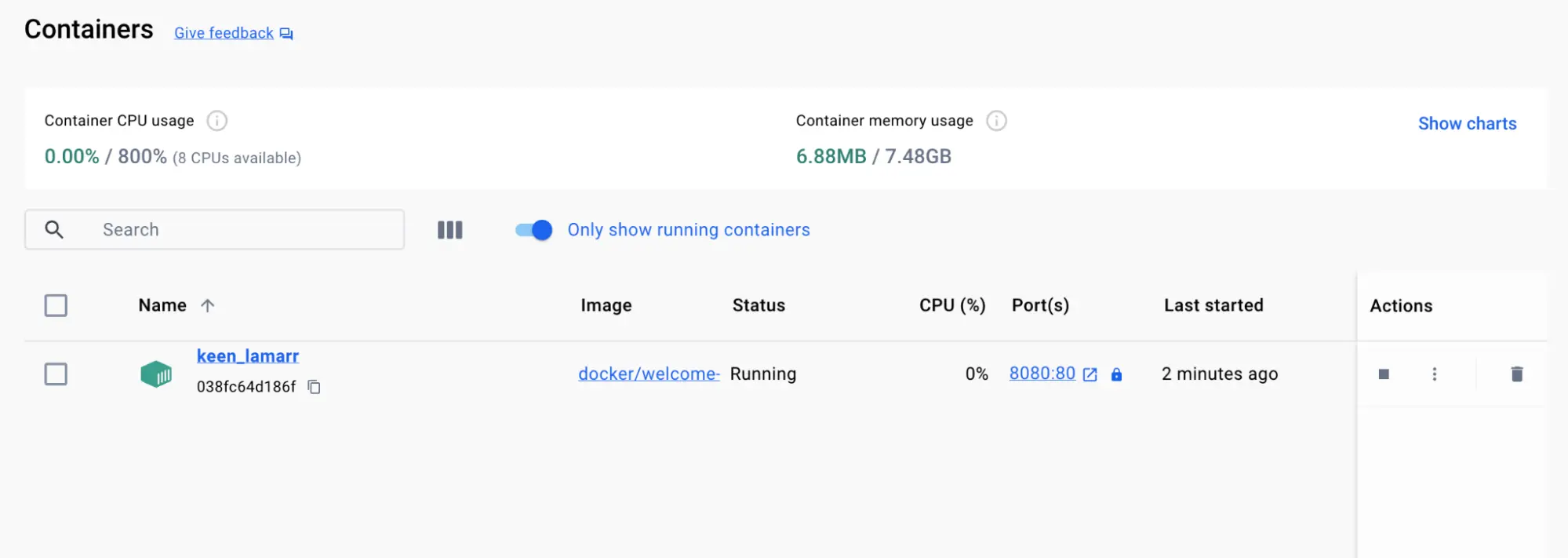
This container runs a web server that displays a simple website. When working with more complex projects, you'll run different parts in different containers. For example, you might run a different container for the frontend, backend, and database.このコンテナは、シンプルなウェブサイトを表示するウェブサーバーを実行しています。より複雑なプロジェクトに取り組む際には、異なる部分を異なるコンテナで実行します。たとえば、フロントエンド、バックエンド、データベースのために異なるコンテナを実行するかもしれません。
Access the frontendフロントエンドにアクセス
When you launched the container, you exposed one of the container's ports onto your machine. Think of this as creating configuration to let you to connect through the isolated environment of the container.コンテナを起動したとき、コンテナのポートの1つをあなたのマシンに公開しました。これは、コンテナの隔離された環境を通じて接続できるようにするための設定を作成することだと考えてください。
For this container, the frontend is accessible on port 8080. To open the website, select the link in the Port(s) column of your container or visit http://localhost:8080 in your browser.このコンテナでは、フロントエンドはポート8080でアクセス可能です。ウェブサイトを開くには、コンテナのPort(s)列のリンクを選択するか、ブラウザでhttp://localhost:8080にアクセスしてください。
Explore your containerコンテナを探索
Docker Desktop lets you explore and interact with different aspects of your container. Try it out yourself.Docker Desktopを使用すると、コンテナのさまざまな側面を探索し、対話することができます。自分で試してみてください。
Go to the Containers view in the Docker Desktop Dashboard.Docker Desktop Dashboardの Containers ビューに移動します。
Select your container.コンテナを選択してください。
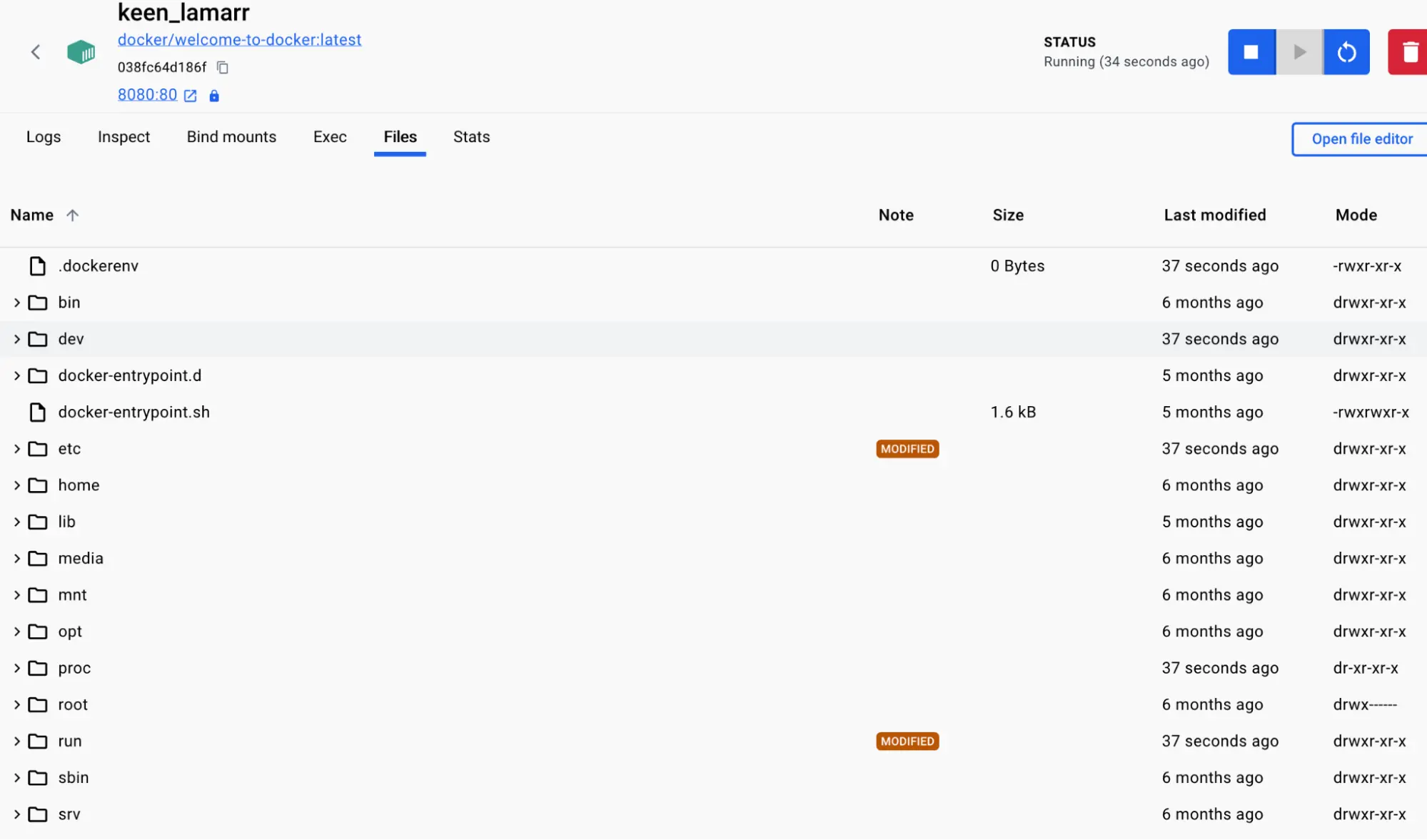
Select the Files tab to explore your container's isolated file system.Files タブを選択して、コンテナの隔離されたファイルシステムを探索します。
Stop your containerコンテナを停止する
The docker/welcome-to-docker container continues to run until you stop it.docker/welcome-to-docker コンテナは、停止するまで実行され続けます。
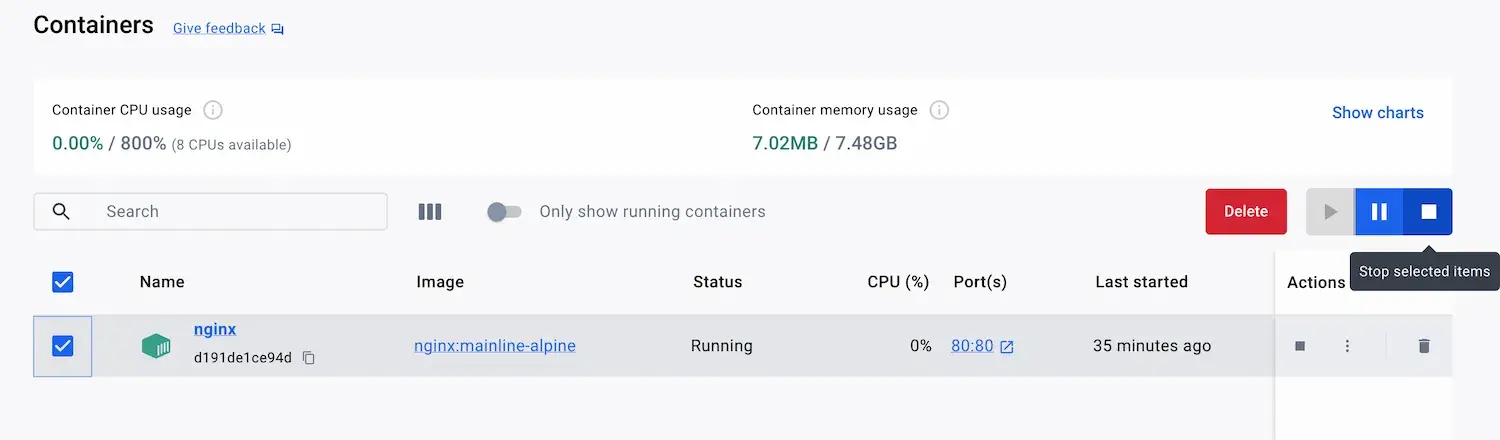
Go to the Containers view in the Docker Desktop Dashboard.Docker Desktop Dashboardの Containers ビューに移動します。
Locate the container you'd like to stop.停止したいコンテナを見つけます。
Select the Stop action in the Actions column.Actions 列で Stop アクションを選択します。
Follow the instructions to run a container using the CLI:CLIを使用してコンテナを実行する手順に従ってください:
Open your CLI terminal and start a container by using the
docker runcommand:CLIターミナルを開き、docker runコマンドを使用してコンテナを開始します:$ docker run -d -p 8080:80 docker/welcome-to-dockerThe output from this command is the full container ID.このコマンドの出力は、完全なコンテナIDです。
Congratulations! You just fired up your first container! 🎉おめでとうございます!初めてのコンテナを起動しました!🎉
View your running containers実行中のコンテナを表示
You can verify if the container is up and running by using the
docker ps command:コンテナが稼働しているかどうかを確認するには、
docker ps コマンドを使用します:
docker ps
You will see output like the following:次のような出力が表示されます:
 CONTAINER ID   IMAGE                      COMMAND                  CREATED          STATUS          PORTS                      NAMES
 a1f7a4bb3a27   docker/welcome-to-docker   "/docker-entrypoint.…"   11 seconds ago   Up 11 seconds   0.0.0.0:8080->80/tcp       gracious_keldysh
This container runs a web server that displays a simple website. When working with more complex projects, you'll run different parts in different containers. For example, a different container for the frontend, backend, and database.このコンテナは、シンプルなウェブサイトを表示するウェブサーバーを実行します。より複雑なプロジェクトに取り組む際には、異なる部分を異なるコンテナで実行します。例えば、frontend、backend、および database のための異なるコンテナです。
TipThe
docker pscommand will show you only running containers. To view stopped containers, add the-aflag to list all containers:docker ps -adocker psコマンドは、実行中の コンテナのみを表示します。停止したコンテナを表示するには、-aフラグを追加してすべてのコンテナをリストします:docker ps -a
Access the frontendフロントエンドにアクセスする
When you launched the container, you exposed one of the container's ports onto your machine. Think of this as creating configuration to let you to connect through the isolated environment of the container.コンテナを起動したとき、コンテナのポートの1つをあなたのマシンに公開しました。これは、コンテナの隔離された環境を通じて接続できるようにするための設定を作成することだと考えてください。
For this container, the frontend is accessible on port 8080. To open the website, select the link in the Port(s) column of your container or visit http://localhost:8080 in your browser.このコンテナでは、フロントエンドはポート 8080 でアクセス可能です。ウェブサイトを開くには、コンテナのポート列にあるリンクを選択するか、ブラウザで http://localhost:8080 にアクセスしてください。
Stop your containerコンテナを停止する
The docker/welcome-to-docker container continues to run until you stop it. You can stop a container using the docker stop command.docker/welcome-to-docker コンテナは、あなたが停止するまで実行され続けます。コンテナを停止するには、docker stop コマンドを使用します。
Run
docker psto get the ID of the containerdocker psを実行してコンテナのIDを取得しますProvide the container ID or name to the
docker stopcommand:コンテナIDまたは名前をdocker stopコマンドに提供します:docker stop <the-container-id>
TipWhen referencing containers by ID, you don't need to provide the full ID. You only need to provide enough of the ID to make it unique. As an example, the previous container could be stopped by running the following command:IDでコンテナを参照する場合、完全なIDを提供する必要はありません。ユニークにするために十分なIDを提供するだけで大丈夫です。例えば、前のコンテナは次のコマンドを実行することで停止できます:
docker stop a1f
Additional resources追加リソース
The following links provide additional guidance into containers:以下のリンクは、コンテナに関する追加のガイダンスを提供します:
Next steps次のステップ
Now that you have learned the basics of a Docker container, it's time to learn about Docker images.Dockerコンテナの基本を学んだので、次はDockerイメージについて学ぶ時です。
What is an image?
