Persist the DBDBを永続化する
In case you didn't notice, your todo list is empty every single time you launch the container. Why is this? In this part, you'll dive into how the container is working.コンテナを起動するたびに、あなたのtodoリストが毎回空であることに気づかなかった場合、なぜでしょうか?この部分では、コンテナがどのように機能しているかを詳しく見ていきます。
The container's filesystemコンテナのファイルシステム
When a container runs, it uses the various layers from an image for its filesystem. Each container also gets its own "scratch space" to create/update/remove files. Any changes won't be seen in another container, even if they're using the same image.コンテナが実行されると、イメージのさまざまなレイヤーをファイルシステムとして使用します。 各コンテナには、ファイルを作成/更新/削除するための独自の「スクラッチスペース」も与えられます。変更は、同じイメージを使用していても、別のコンテナでは見えません。
See this in practice実際にこれを見てみましょう
To see this in action, you're going to start two containers. In one container, you'll create a file. In the other container, you'll check whether that same file exists.これを実際に見るために、2つのコンテナを起動します。一方のコンテナでは、ファイルを作成します。もう一方のコンテナでは、その同じファイルが存在するかどうかを確認します。
Start an Alpine container and create a new file in it.Alpineコンテナを起動し、その中に新しいファイルを作成します。
$ docker run --rm alpine touch greeting.txtTipAny commands you specify after the image name (in this case,
alpine) are executed inside the container. In this case, the commandtouch greeting.txtputs a file namedgreeting.txton the container's filesystem.イメージ名の後に指定したコマンド(この場合はalpine)は、コンテナ内で実行されます。この場合、コマンドtouch greeting.txtは、コンテナのファイルシステムにgreeting.txtという名前のファイルを作成します。Run a new Alpine container and use the
statcommand to check whether the file exists.新しいAlpineコンテナを実行し、statコマンドを使用してファイルが存在するかどうかを確認します。$ docker run --rm alpine stat greeting.txtYou should see output similar to the following that indicates the file does not exist in the new container.新しいコンテナにファイルが存在しないことを示す、以下のような出力が表示されるはずです。
stat: can't stat 'greeting.txt': No such file or directory
The greeting.txt file created by the first container did not exist in the
second container. That is because the writeable "top layer" of each container
is isolated. Even though both containers shared the same underlying layers that
make up the base image, the writable layer is unique to each container.最初のコンテナによって作成されたgreeting.txtファイルは、2番目のコンテナには存在しませんでした。それは、各コンテナの書き込み可能な「最上位レイヤー」が隔離されているためです。両方のコンテナが基本イメージを構成する同じ基盤レイヤーを共有していても、書き込み可能なレイヤーは各コンテナに固有です。
Container volumesコンテナボリューム
With the previous experiment, you saw that each container starts from the image definition each time it starts. While containers can create, update, and delete files, those changes are lost when you remove the container and Docker isolates all changes to that container. With volumes, you can change all of this.前回の実験で、各コンテナは起動するたびにイメージ定義から始まることがわかりました。 コンテナはファイルを作成、更新、削除できますが、コンテナを削除するとその変更は失われ、Dockerはそのコンテナへのすべての変更を隔離します。ボリュームを使用すると、これをすべて変更できます。
Volumes provide the ability to connect specific filesystem paths of the container back to the host machine. If you mount a directory in the container, changes in that directory are also seen on the host machine. If you mount that same directory across container restarts, you'd see the same files.ボリュームは、コンテナの特定のファイルシステムパスをホストマシンに接続する機能を提供します。コンテナ内のディレクトリをマウントすると、そのディレクトリ内の変更もホストマシンで見ることができます。同じディレクトリをコンテナの再起動を通じてマウントすると、同じファイルが表示されます。
There are two main types of volumes. You'll eventually use both, but you'll start with volume mounts.ボリュームには主に2つのタイプがあります。最終的には両方を使用しますが、最初はボリュームマウントから始めます。
Persist the todo dataTodoデータを永続化する
By default, the todo app stores its data in a SQLite database at
/etc/todos/todo.db in the container's filesystem. If you're not familiar with SQLite, no worries! It's simply a relational database that stores all the data in a single file. While this isn't the best for large-scale applications,
it works for small demos. You'll learn how to switch this to a different database engine later.デフォルトでは、todoアプリはコンテナのファイルシステム内の/etc/todos/todo.dbにデータをSQLiteデータベースとして保存します。SQLiteに不慣れな場合でも心配ありません!これは単にすべてのデータを1つのファイルに保存するリレーショナルデータベースです。これは大規模なアプリケーションには最適ではありませんが、小さなデモには機能します。後でこれを別のデータベースエンジンに切り替える方法を学びます。
With the database being a single file, if you can persist that file on the host and make it available to the
next container, it should be able to pick up where the last one left off. By creating a volume and attaching
(often called "mounting") it to the directory where you stored the data, you can persist the data. As your container
writes to the todo.db file, it will persist the data to the host in the volume.データベースが単一のファイルであるため、そのファイルをホスト上に永続化し、次のコンテナで利用できるようにすれば、前のコンテナが終了したところから再開できるはずです。ボリュームを作成し、データを保存したディレクトリに(通常は「マウント」と呼ばれます)接続することで、データを永続化できます。コンテナがtodo.dbファイルに書き込むと、そのデータはボリューム内のホストに永続化されます。
As mentioned, you're going to use a volume mount. Think of a volume mount as an opaque bucket of data. Docker fully manages the volume, including the storage location on disk. You only need to remember the name of the volume.前述のように、ボリュームマウントを使用します。ボリュームマウントは不透明なデータのバケツのようなものと考えてください。Dockerはボリュームを完全に管理し、ディスク上のストレージ場所も含まれます。ボリュームの名前を覚えておくだけで大丈夫です。
Create a volume and start the containerボリュームを作成してコンテナを起動する
You can create the volume and start the container using the CLI or Docker Desktop's graphical interface.CLIまたはDocker Desktopのグラフィカルインターフェースを使用して、ボリュームを作成し、コンテナを起動できます。
Create a volume by using the
docker volume createcommand.docker volume createコマンドを使用してボリュームを作成します。$ docker volume create todo-dbStop and remove the todo app container once again with
docker rm -f <id>, as it is still running without using the persistent volume.todoアプリのコンテナを再度停止して削除します。docker rm -f <id>を使用して、永続ボリュームを使用せずにまだ実行中です。Start the todo app container, but add the
--mountoption to specify a volume mount. Give the volume a name, and mount it to/etc/todosin the container, which captures all files created at the path.todoアプリのコンテナを起動しますが、--mountオプションを追加してボリュームマウントを指定します。ボリュームに名前を付け、コンテナ内の/etc/todosにマウントします。これにより、そのパスで作成されたすべてのファイルがキャプチャされます。$ docker run -dp 127.0.0.1:3000:3000 --mount type=volume,src=todo-db,target=/etc/todos getting-startedNoteIf you're using Git Bash, you must use different syntax for this command.Git Bashを使用している場合、このコマンドには異なる構文を使用する必要があります。
$ docker run -dp 127.0.0.1:3000:3000 --mount type=volume,src=todo-db,target=//etc/todos getting-startedFor more details about Git Bash's syntax differences, see Working with Git Bash.Git Bashの構文の違いについての詳細は、 Git Bashの使用を参照してください。
To create a volume:ボリュームを作成するには:
- Select Volumes in Docker Desktop.VolumesをDocker Desktopで選択します。
- In Volumes, select Create.Volumesで、Createを選択します。
- Specify
todo-dbas the volume name, and then select Create.ボリューム名としてtodo-dbを指定し、次にCreateを選択します。
To stop and remove the app container:アプリコンテナを停止して削除するには:
- Select Containers in Docker Desktop.ContainersをDocker Desktopで選択します。
- Select Delete in the Actions column for the container.コンテナのActions列でDeleteを選択します。
To start the todo app container with the volume mounted:ボリュームがマウントされた状態でtodoアプリコンテナを起動するには:
Select the search box at the top of Docker Desktop.Docker Desktopの上部にある検索ボックスを選択します。
In the search window, select the Images tab.検索ウィンドウで、Imagesタブを選択します。
In the search box, specify the image name,
getting-started.検索ボックスに、イメージ名getting-startedを指定します。TipUse the search filter to filter images and only show Local images.検索フィルターを使用して、イメージをフィルタリングし、Local imagesのみを表示します。
Select your image and then select Run.イメージを選択し、次にRunを選択します。
Select Optional settings.次にOptional settingsを選択します。
In Host port, specify the port, for example,
3000.Host portに、ポートを指定します。例えば、3000です。In Host path, specify the name of the volume,
todo-db.Host pathに、ボリュームの名前todo-dbを指定します。In Container path, specify
/etc/todos.Container pathに/etc/todosを指定します。Select Run.Runを選択します。
Verify that the data persistsデータが持続することを確認する
Once the container starts up, open the app and add a few items to your todo list.コンテナが起動したら、アプリを開いて、いくつかのアイテムをTODOリストに追加します。
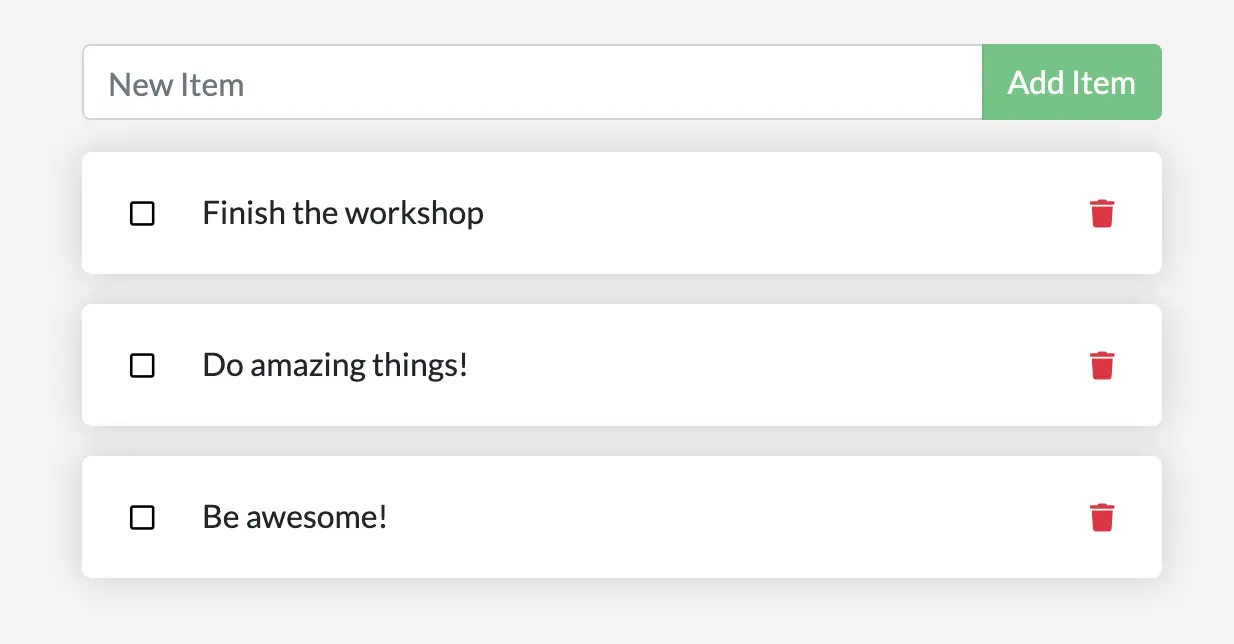
Stop and remove the container for the todo app. Use Docker Desktop or
docker psto get the ID and thendocker rm -f <id>to remove it.TODOアプリのコンテナを停止して削除します。Docker Desktopまたはdocker psを使用してIDを取得し、次にdocker rm -f <id>を使用して削除します。Start a new container using the previous steps.前の手順を使用して新しいコンテナを起動します。
Open the app. You should see your items still in your list.アプリを開いてください。リストにアイテムがまだ表示されているはずです。
Go ahead and remove the container when you're done checking out your list.リストを確認したら、コンテナを削除してください。
You've now learned how to persist data.これでデータを持続させる方法を学びました。
Dive into the volumeボリュームについて詳しく知る
A lot of people frequently ask "Where is Docker storing my data when I use a volume?" If you want to know,
you can use the docker volume inspect command.多くの人が「ボリュームを使用しているとき、Dockerは私のデータをどこに保存しているのですか?」とよく尋ねます。知りたい場合は、docker volume inspectコマンドを使用できます。
$ docker volume inspect todo-db
You should see output like the following:次のような出力が表示されるはずです:
[
    {
        "CreatedAt": "2019-09-26T02:18:36Z",
        "Driver": "local",
        "Labels": {},
        "Mountpoint": "/var/lib/docker/volumes/todo-db/_data",
        "Name": "todo-db",
        "Options": {},
        "Scope": "local"
    }
]
The Mountpoint is the actual location of the data on the disk. Note that on most machines, you will
need to have root access to access this directory from the host.Mountpointはディスク上のデータの実際の場所です。ほとんどのマシンでは、ホストからこのディレクトリにアクセスするにはルートアクセスが必要であることに注意してください。
Summary概要
In this section, you learned how to persist container data.このセクションでは、コンテナデータを永続化する方法を学びました。
Related information:関連情報:
Next steps次のステップ
Next, you'll learn how you can develop your app more efficiently using bind mounts.次に、バインドマウントを使用してアプリをより効率的に開発する方法を学びます。
Use bind mounts
