What is Docker Compose?Docker Composeとは?
Explanation説明
If you've been following the guides so far, you've been working with single container applications. But, now you're wanting to do something more complicated - run databases, message queues, caches, or a variety of other services. Do you install everything in a single container? Run multiple containers? If you run multiple, how do you connect them all together?これまでのガイドに従ってきた場合、単一コンテナアプリケーションで作業してきたでしょう。しかし、今はもっと複雑なことをしたいと思っています - データベース、メッセージキュー、キャッシュ、またはさまざまな他のサービスを実行することです。すべてを単一のコンテナにインストールしますか?複数のコンテナを実行しますか?複数のコンテナを実行する場合、すべてをどのように接続しますか?
One best practice for containers is that each container should do one thing and do it well. While there are exceptions to this rule, avoid the tendency to have one container do multiple things.コンテナに関するベストプラクティスの一つは、各コンテナが一つのことを行い、それをうまく行うべきだということです。このルールには例外がありますが、一つのコンテナで複数のことを行う傾向を避けるべきです。
You can use multiple docker run commands to start multiple containers. But, you'll soon realize you'll need to manage networks, all of the flags needed to connect containers to those networks, and more. And when you're done, cleanup is a little more complicated.複数の docker run コマンドを使用して複数のコンテナを起動できます。しかし、すぐにネットワークを管理し、コンテナをそれらのネットワークに接続するために必要なすべてのフラグなどを管理する必要があることに気付くでしょう。そして、作業が終わったとき、クリーンアップは少し複雑になります。
With Docker Compose, you can define all of your containers and their configurations in a single YAML file. If you include this file in your code repository, anyone that clones your repository can get up and running with a single command.Docker Composeを使用すると、すべてのコンテナとその設定を単一のYAMLファイルで定義できます。このファイルをコードリポジトリに含めると、リポジトリをクローンした誰でも単一のコマンドで立ち上げることができます。
It's important to understand that Compose is a declarative tool - you simply define it and go. You don't always need to recreate everything from scratch. If you make a change, run docker compose up again and Compose will reconcile the changes in your file and apply them intelligently.Composeは宣言型ツールであることを理解することが重要です - 単に定義して実行するだけです。すべてをゼロから再作成する必要はありません。変更を加えた場合は、再度 docker compose up を実行すると、Composeはファイルの変更を調整し、インテリジェントに適用します。
Dockerfile versus Compose fileDockerfileとComposeファイルの違い
A Dockerfile provides instructions to build a container image while a Compose file defines your running containers. Quite often, a Compose file references a Dockerfile to build an image to use for a particular service.Dockerfileはコンテナイメージをビルドするための指示を提供し、Composeファイルは実行中のコンテナを定義します。しばしば、Composeファイルは特定のサービスに使用するイメージをビルドするためにDockerfileを参照します。
Try it out試してみる
In this hands-on, you will learn how to use a Docker Compose to run a multi-container application. You'll use a simple to-do list app built with Node.js and MySQL as a database server.このハンズオンでは、Docker Composeを使用してマルチコンテナアプリケーションを実行する方法を学びます。Node.jsで構築されたシンプルなTODOリストアプリとMySQLをデータベースサーバーとして使用します。
Start the applicationアプリケーションを開始する
Follow the instructions to run the to-do list app on your system.指示に従って、システム上でTODOリストアプリを実行してください。
Download and install Docker Desktop.Docker Desktopをダウンロードしてインストールします。
Open a terminal and clone this sample application.ターミナルを開き、このサンプルアプリケーションをクローンします。
git clone https://github.com/dockersamples/todo-list-appNavigate into the
todo-list-appdirectory:todo-list-appディレクトリに移動します:cd todo-list-appInside this directory, you'll find a file named
compose.yaml. This YAML file is where all the magic happens! It defines all the services that make up your application, along with their configurations. Each service specifies its image, ports, volumes, networks, and any other settings necessary for its functionality. Take some time to explore the YAML file and familiarize yourself with its structure.このディレクトリ内には、compose.yamlという名前のファイルがあります。このYAMLファイルがすべての魔法が起こる場所です!アプリケーションを構成するすべてのサービスとその設定が定義されています。各サービスは、そのイメージ、ポート、ボリューム、ネットワーク、および機能に必要なその他の設定を指定します。YAMLファイルをじっくりと探検し、その構造に慣れてください。Use the
docker compose upcommand to start the application:アプリケーションを開始するには、docker compose upコマンドを使用してください:docker compose up -d --buildWhen you run this command, you should see an output like this:このコマンドを実行すると、次のような出力が表示されるはずです:
[+] Running 5/5
✔ app 3 layers [⣿⣿⣿]      0B/0B            Pulled          7.1s
  ✔ e6f4e57cc59e Download complete                          0.9s
  ✔ df998480d81d Download complete                          1.0s
  ✔ 31e174fedd23 Download complete                          2.5s
  ✔ 43c47a581c29 Download complete                          2.0s
[+] Running 4/4
  ⠸ Network todo-list-app_default           Created         0.3s
  ⠸ Volume "todo-list-app_todo-mysql-data"  Created         0.3s
  ✔ Container todo-list-app-app-1           Started         0.3s
  ✔ Container todo-list-app-mysql-1         Started         0.3s
A lot happened here! A couple of things to call out:ここでは多くのことが起こりました!いくつかのポイントを挙げます:
- Two container images were downloaded from Docker Hub - node and MySQLDocker Hubから2つのコンテナイメージがダウンロードされました - nodeとMySQL
- A network was created for your applicationアプリケーション用のネットワークが作成されました
- A volume was created to persist the database files between container restartsコンテナの再起動間でデータベースファイルを永続化するためのボリュームが作成されました
- Two containers were started with all of their necessary config必要な設定をすべて持った2つのコンテナが起動しました。
If this feels overwhelming, don't worry! You'll get there!これが圧倒的に感じられるかもしれませんが、心配しないでください!あなたはそこにたどり着きます!
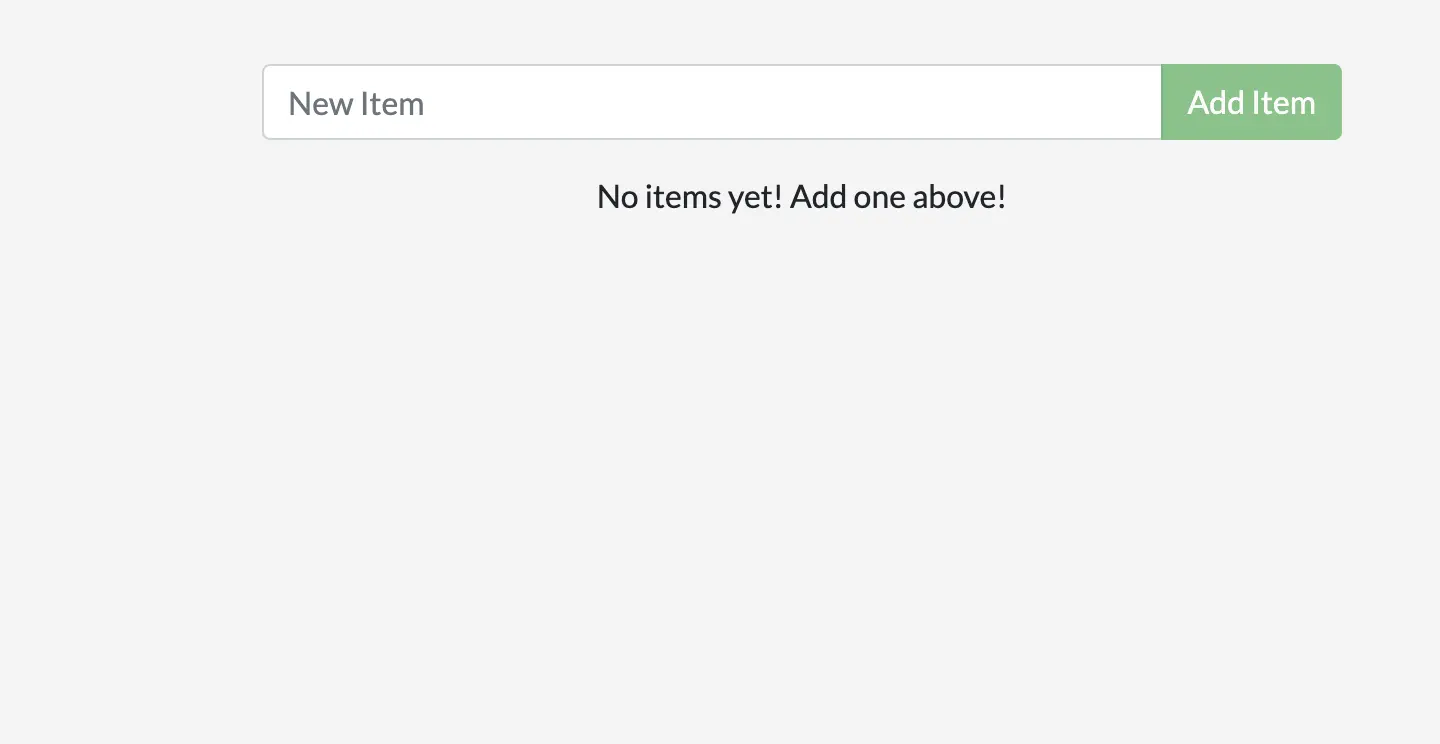
With everything now up and running, you can open http://localhost:3000 in your browser to see the site. Note that the application may take 10-15 seconds to fully start. If the page doesn't load right away, wait a moment and refresh. Feel free to add items to the list, check them off, and remove them.すべてが正常に動作しているので、ブラウザでhttp://localhost:3000を開いてサイトを確認できます。アプリケーションが完全に起動するまでに10〜15秒かかる場合があります。ページがすぐに読み込まれない場合は、少し待ってからリフレッシュしてください。リストにアイテムを追加したり、チェックを入れたり、削除したりしても構いません。
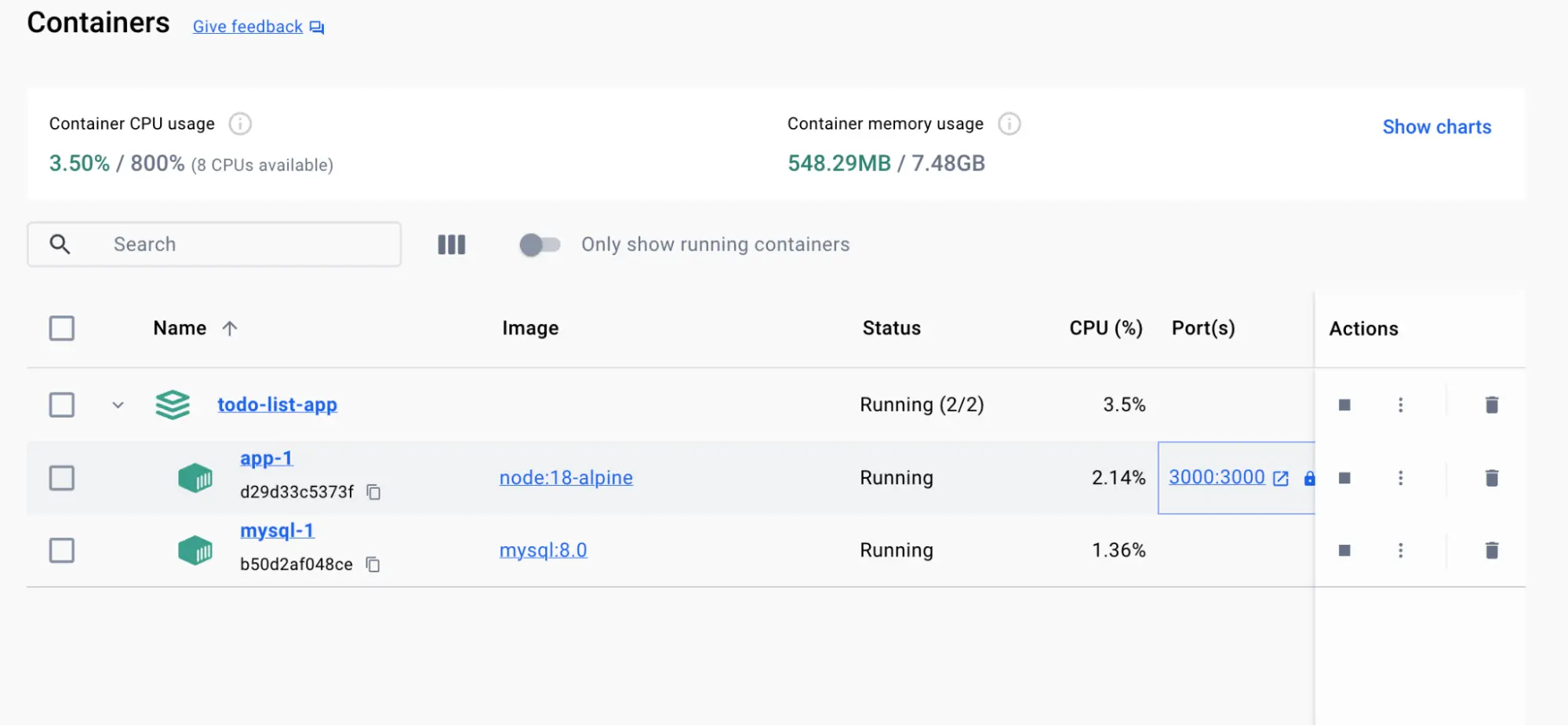
If you look at the Docker Desktop GUI, you can see the containers and dive deeper into their configuration.Docker Desktop GUIを見ると、コンテナを確認し、その設定をさらに詳しく見ることができます。
Tear it down削除する
Since this application was started using Docker Compose, it's easy to tear it all down when you're done.このアプリケーションはDocker Composeを使用して起動されたため、作業が終わったらすべてを簡単に削除できます。
In the CLI, use the
docker compose downcommand to remove everything:CLIで、docker compose downコマンドを使用してすべてを削除します:docker compose downYou'll see output similar to the following:次のような出力が表示されます:
[+] Running 3/3
✔ Container todo-list-app-mysql-1  Removed        2.9s
✔ Container todo-list-app-app-1    Removed        0.1s
✔ Network todo-list-app_default    Removed        0.1s
Volume persistenceボリュームの永続性
By default, volumes aren't automatically removed when you tear down a Compose stack. The idea is that you might want the data back if you start the stack again.デフォルトでは、Composeスタックを削除するとボリュームは自動的に削除されません。これは、スタックを再起動する場合にデータを戻したいかもしれないという考えからです。
If you do want to remove the volumes, add the
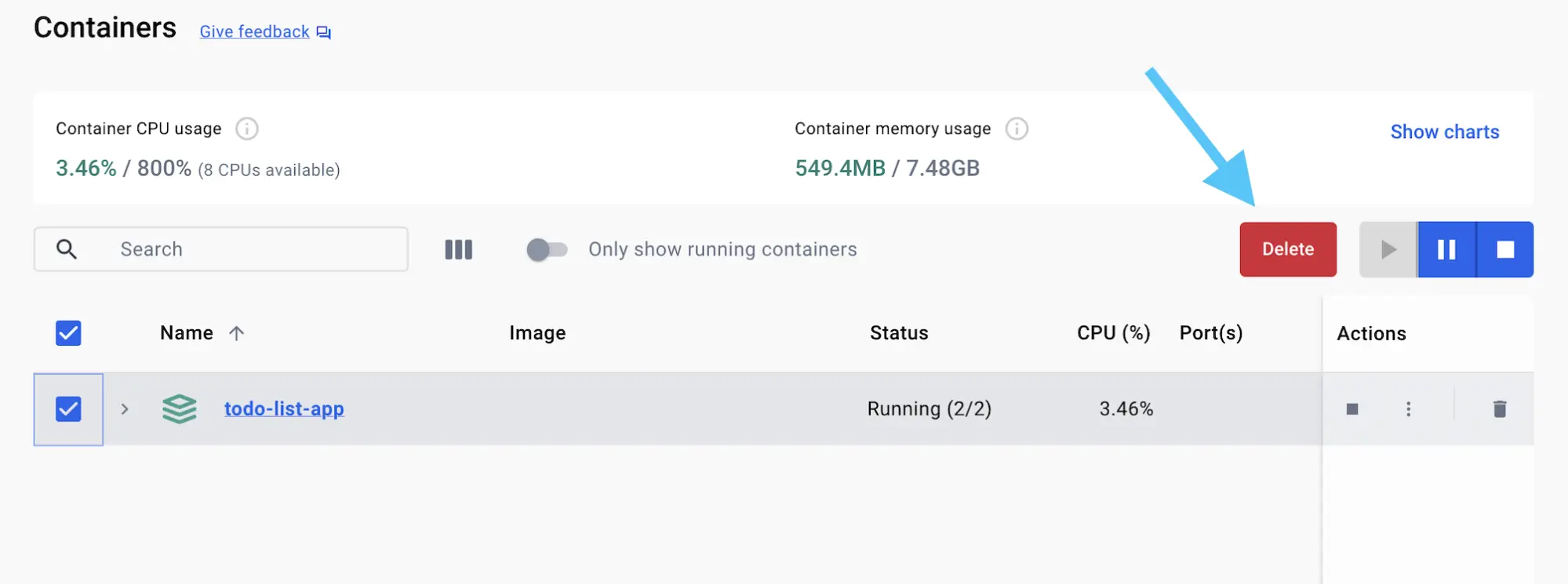
--volumesflag when running thedocker compose downcommand:ボリュームを削除したい場合は、docker compose downコマンドを実行する際に--volumesフラグを追加してください。docker compose down --volumes [+] Running 1/0 ✔ Volume todo-list-app_todo-mysql-data RemovedAlternatively, you can use the Docker Desktop GUI to remove the containers by selecting the application stack and selecting the Delete button.また、Docker DesktopのGUIを使用して、アプリケーションスタックを選択し、削除ボタンを選択することでコンテナを削除することもできます。
Using the GUI for Compose stacksComposeスタックのGUIの使用
Note that if you remove the containers for a Compose app in the GUI, it's removing only the containers. You'll have to manually remove the network and volumes if you want to do so.GUIでComposeアプリのコンテナを削除すると、コンテナのみが削除されることに注意してください。ネットワークやボリュームも削除したい場合は、手動で行う必要があります。
In this walkthrough, you learned how to use Docker Compose to start and stop a multi-container application.このウォークスルーでは、Docker Composeを使用してマルチコンテナアプリケーションを起動および停止する方法を学びました。
Additional resources追加リソース
This page was a brief introduction to Compose. In the following resources, you can dive deeper into Compose and how to write Compose files.このページはComposeの簡単な紹介でした。次のリソースでは、Composeについてさらに深く掘り下げ、Composeファイルの書き方を学ぶことができます。

