What is an image?画像とは何ですか?
Explanation説明
Seeing as a container is an isolated process, where does it get its files and configuration? How do you share those environments?コンテナがコンテナとして隔離されたプロセスであることを考えると、どこからファイルや設定を取得するのでしょうか?それらの環境をどのように共有しますか?
That's where container images come in. A container image is a standardized package that includes all of the files, binaries, libraries, and configurations to run a container.そこでコンテナイメージが登場します。コンテナイメージは、コンテナを実行するために必要なすべてのファイル、バイナリ、ライブラリ、および設定を含む標準化されたパッケージです。
For a PostgreSQL image, that image will package the database binaries, config files, and other dependencies. For a Python web app, it'll include the Python runtime, your app code, and all of its dependencies.PostgreSQLイメージの場合、そのイメージはデータベースのバイナリ、設定ファイル、およびその他の依存関係をパッケージ化します。Pythonウェブアプリの場合、Pythonランタイム、アプリコード、およびそのすべての依存関係が含まれます。
There are two important principles of images:イメージには2つの重要な原則があります:
Images are immutable. Once an image is created, it can't be modified. You can only make a new image or add changes on top of it.イメージは不変です。一度イメージが作成されると、変更することはできません。新しいイメージを作成するか、その上に変更を加えることしかできません。
Container images are composed of layers. Each layer represents a set of file system changes that add, remove, or modify files.コンテナイメージはレイヤーで構成されています。各レイヤーは、ファイルを追加、削除、または変更するファイルシステムの変更のセットを表します。
These two principles let you to extend or add to existing images. For example, if you are building a Python app, you can start from the Python image and add additional layers to install your app's dependencies and add your code. This lets you focus on your app, rather than Python itself.これら2つの原則により、既存のイメージを拡張または追加することができます。たとえば、Pythonアプリを構築している場合、Pythonイメージから始めて、アプリの依存関係をインストールし、コードを追加するための追加のレイヤーを追加できます。これにより、Python自体ではなく、アプリに集中することができます。
Finding images画像を見つける
Docker Hub is the default global marketplace for storing and distributing images. It has over 100,000 images created by developers that you can run locally. You can search for Docker Hub images and run them directly from Docker Desktop.Docker Hub は、イメージを保存および配布するためのデフォルトのグローバルマーケットプレイスです。開発者によって作成された100,000以上のイメージがあり、これらをローカルで実行できます。Docker Hubのイメージを検索し、Docker Desktopから直接実行できます。
Docker Hub provides a variety of Docker-supported and endorsed images known as Docker Trusted Content. These provide fully managed services or great starters for your own images. These include:Docker Hubは、Dockerがサポートし推奨するさまざまなイメージを提供しており、これらはDocker Trusted Contentとして知られています。これらは完全に管理されたサービスを提供するか、自分のイメージのための優れたスタートポイントとなります。これには以下が含まれます:
- Docker Official Images - a curated set of Docker repositories, serve as the starting point for the majority of users, and are some of the most secure on Docker HubDocker Official Images - キュレーションされたDockerリポジトリのセットで、ほとんどのユーザーの出発点となり、Docker Hubで最も安全なもののいくつかです。
- Docker Verified Publishers - high-quality images from commercial publishers verified by DockerDocker Verified Publishers - Dockerによって検証された商業パブリッシャーからの高品質なイメージ。
- Docker-Sponsored Open Source - images published and maintained by open-source projects sponsored by Docker through Docker's open source programDocker-Sponsored Open Source - Dockerのオープンソースプログラムを通じてDockerがスポンサーとなっているオープンソースプロジェクトによって公開および維持されているイメージ。
For example, Redis and Memcached are a few popular ready-to-go Docker Official Images. You can download these images and have these services up and running in a matter of seconds. There are also base images, like the Node.js Docker image, that you can use as a starting point and add your own files and configurations.例えば、RedisやMemcachedは、人気のあるすぐに使えるDocker Official Imagesのいくつかです。これらのイメージをダウンロードし、数秒でこれらのサービスを立ち上げることができます。また、Node.js Dockerイメージのようなベースイメージもあり、これを出発点として自分のファイルや設定を追加できます。
Try it out試してみる
In this hands-on, you will learn how to search and pull a container image using the Docker Desktop GUI.このハンズオンでは、Docker Desktop GUIを使用してコンテナイメージを検索し、プルする方法を学びます。
Search for and download an imageイメージを検索してダウンロードする
Open the Docker Desktop Dashboard and select the Images view in the left-hand navigation menu.Docker Desktopダッシュボードを開き、左側のナビゲーションメニューでImagesビューを選択します。
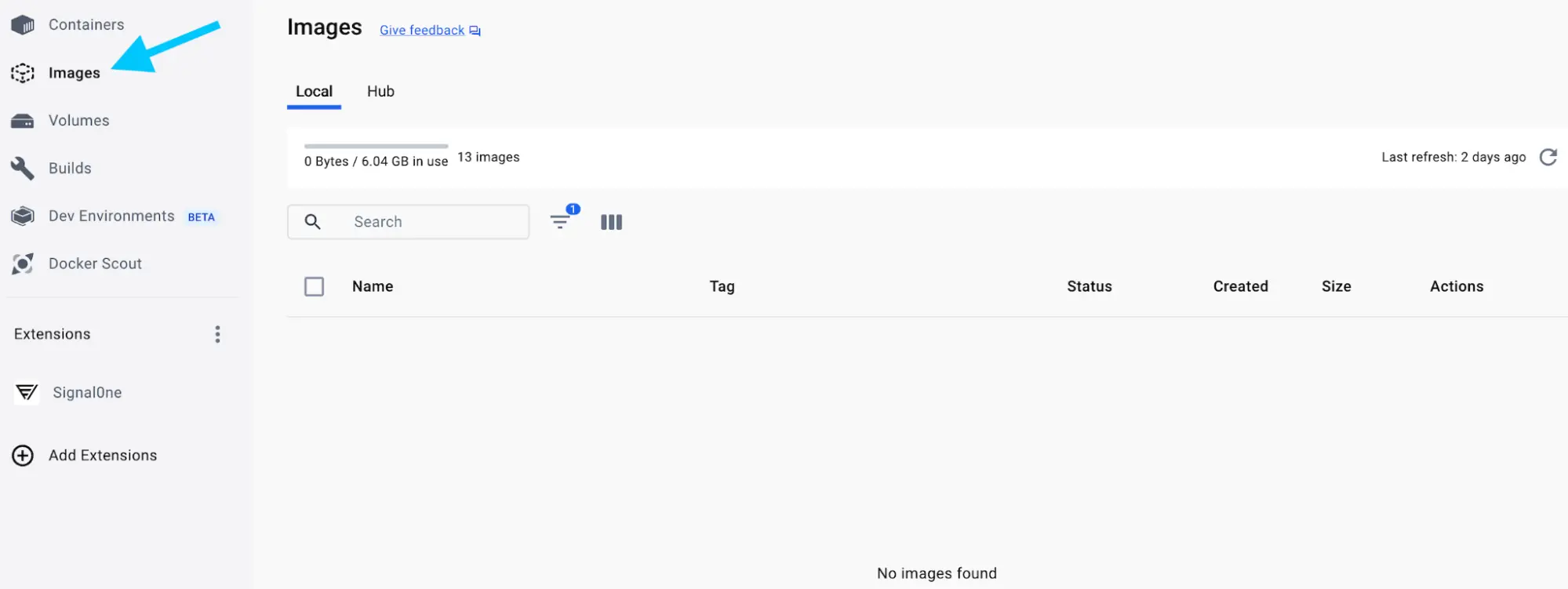
Select the Search images to run button. If you don't see it, select the global search bar at the top of the screen.画像を実行するために検索ボタンを選択します。表示されない場合は、画面の上部にあるグローバル検索バーを選択してください。
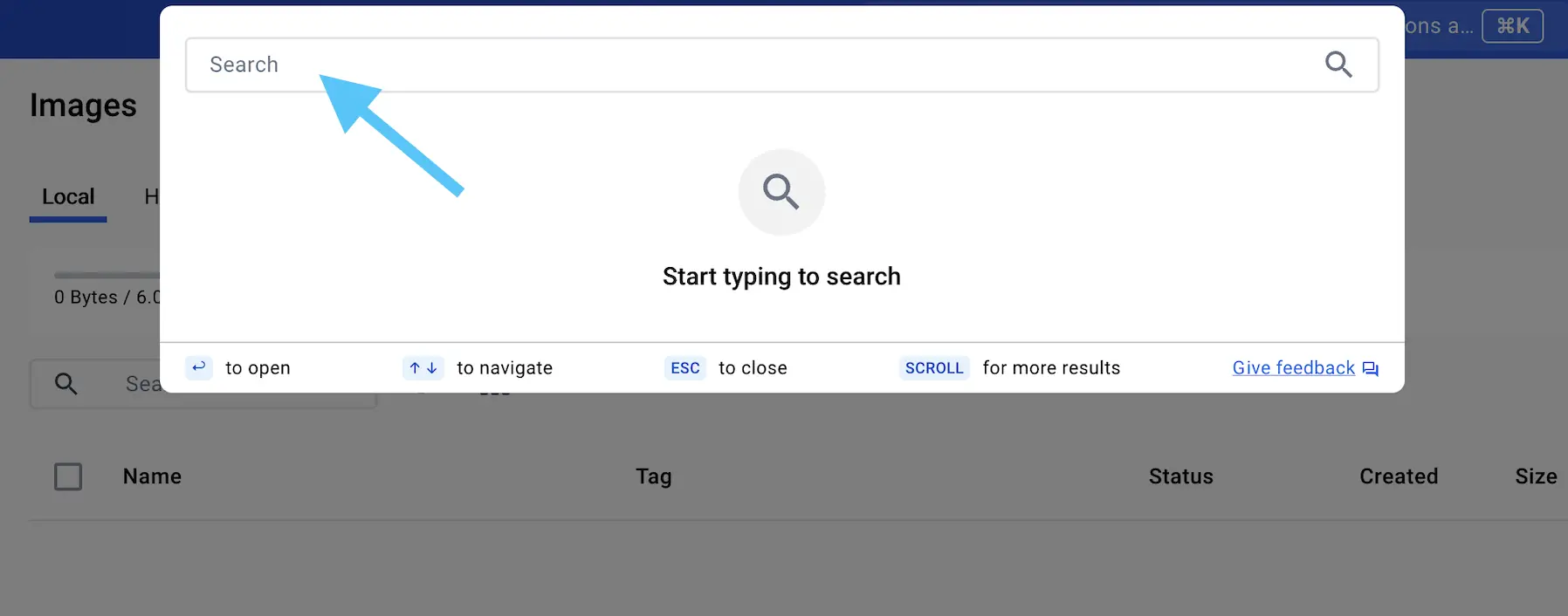
In the Search field, enter "welcome-to-docker". Once the search has completed, select the
docker/welcome-to-dockerimage.検索フィールドに「welcome-to-docker」と入力します。検索が完了したら、docker/welcome-to-dockerイメージを選択します。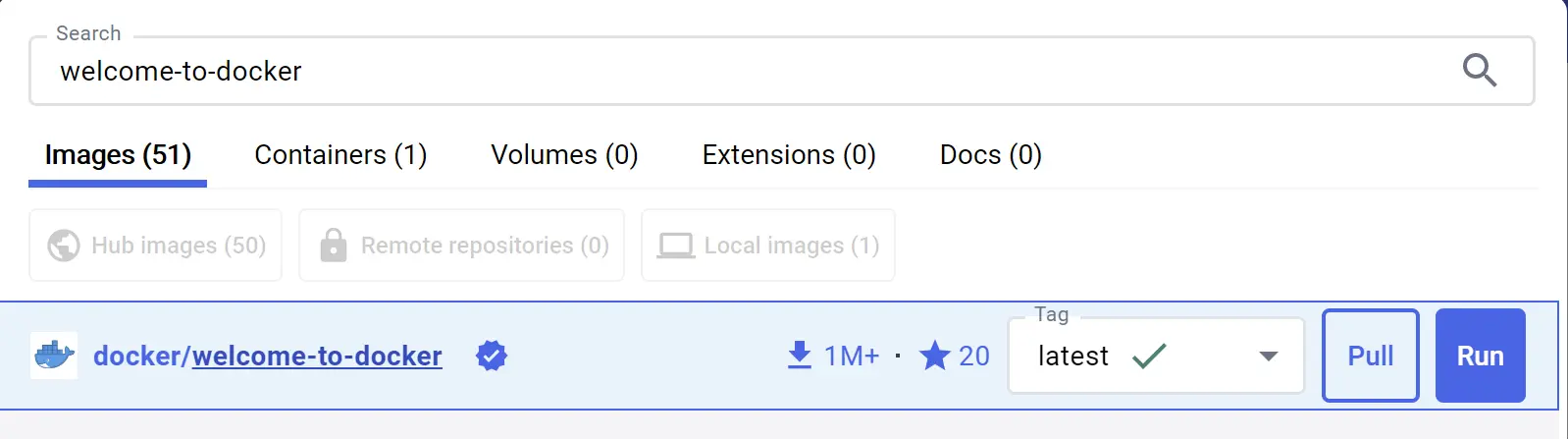
Select Pull to download the image.プルを選択してイメージをダウンロードします。
Learn about the imageイメージについて学ぶ
Once you have an image downloaded, you can learn quite a few details about the image either through the GUI or the CLI.イメージをダウンロードしたら、GUIまたはCLIを通じてイメージに関する詳細を学ぶことができます。
In the Docker Desktop Dashboard, select the Images view.Docker Desktop Dashboardで、イメージビューを選択します。
Select the docker/welcome-to-docker image to open details about the image.docker/welcome-to-dockerイメージを選択して、イメージの詳細を開きます。
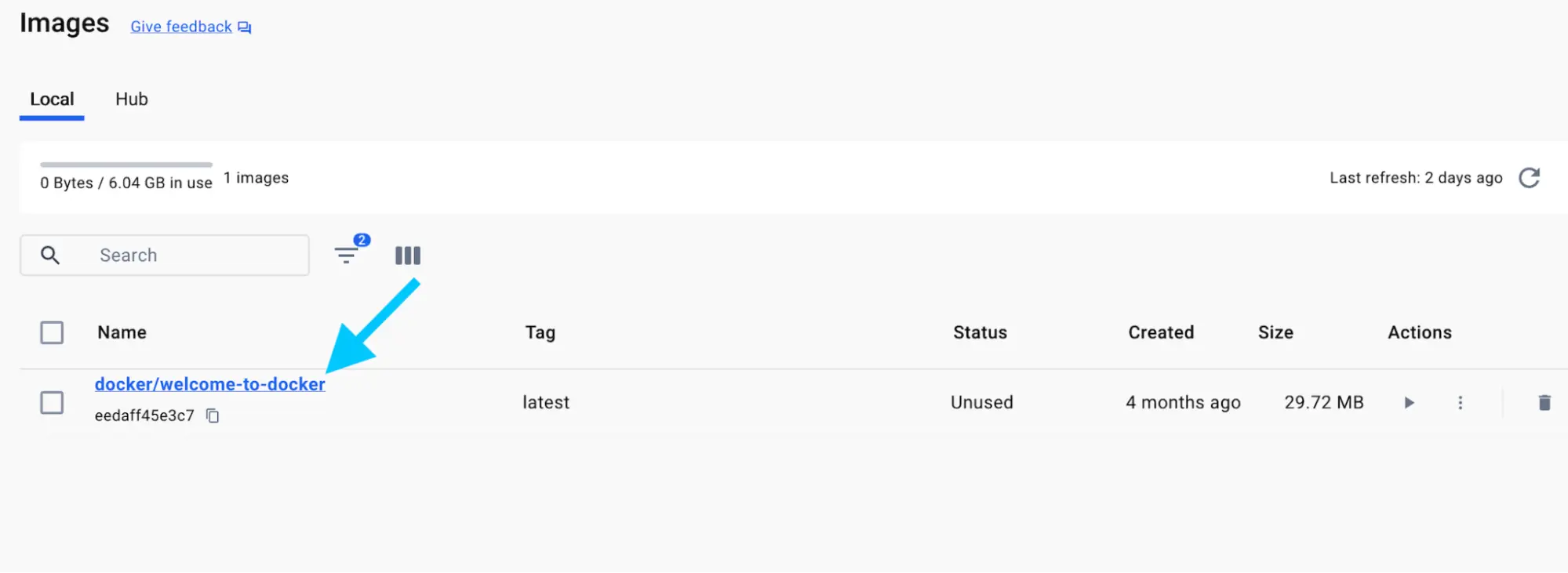
The image details page presents you with information regarding the layers of the image, the packages and libraries installed in the image, and any discovered vulnerabilities.イメージの詳細ページでは、イメージのレイヤー、イメージにインストールされているパッケージやライブラリ、発見された脆弱性に関する情報が表示されます。
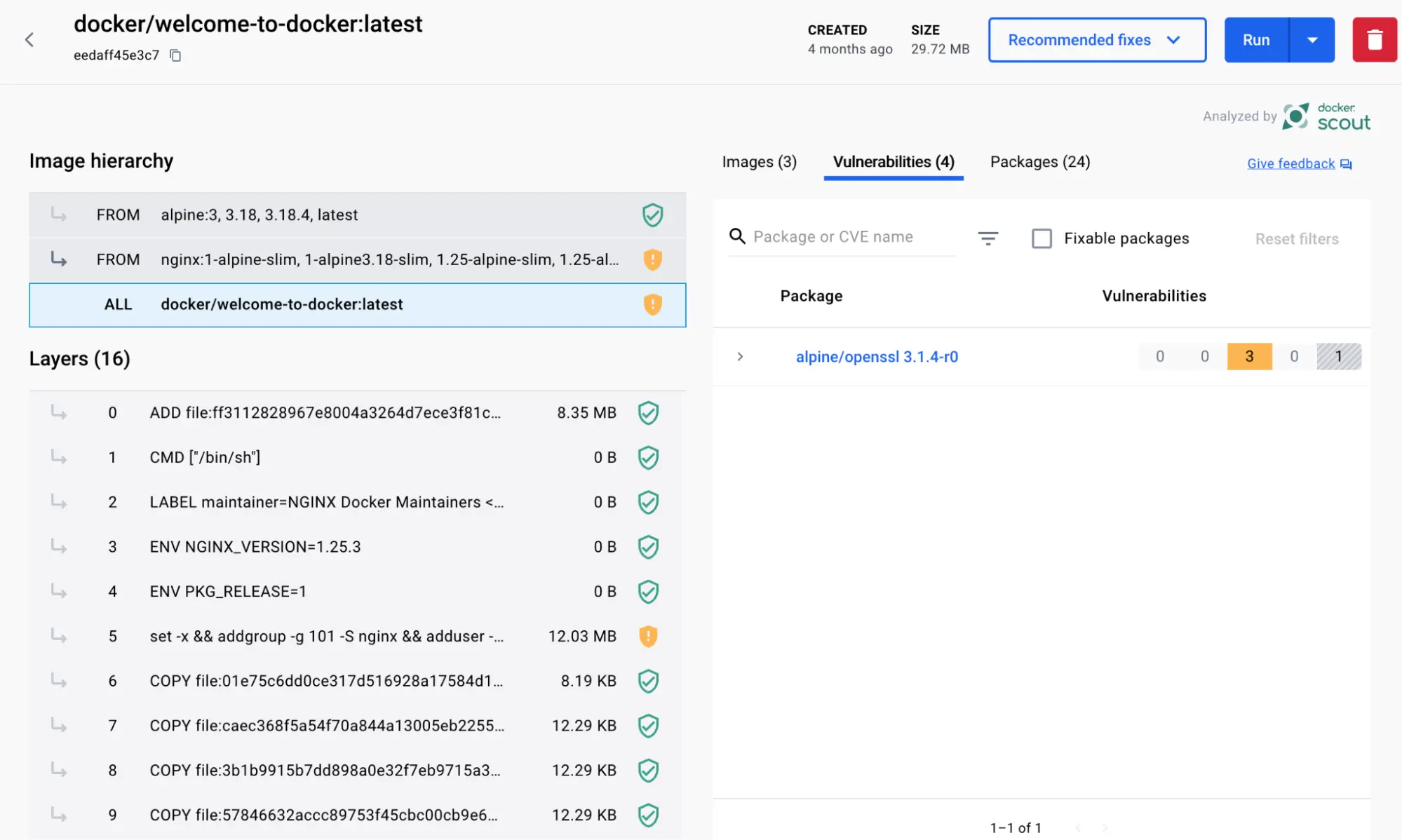
Follow the instructions to search and pull a Docker image using CLI to view its layers.CLIを使用してDockerイメージを検索し、プルする手順に従って、そのレイヤーを表示します。
Search for and download an imageイメージを検索してダウンロードする
Open a terminal and search for images using the
docker searchcommand:ターミナルを開き、
docker searchコマンドを使用して画像を検索します。docker search docker/welcome-to-dockerYou will see output like the following:次のような出力が表示されます:
NAME                       DESCRIPTION                                     STARS     OFFICIAL
docker/welcome-to-docker   Docker image for new users getting started w…   20
This output shows you information about relevant images available on Docker Hub.この出力は、Docker Hubで利用可能な関連画像に関する情報を示しています。
Pull the image using the
docker pullcommand.
画像をプルするには、
docker pullコマンドを使用します。docker pull docker/welcome-to-dockerYou will see output like the following:次のような出力が表示されます:
Using default tag: latest
latest: Pulling from docker/welcome-to-docker
579b34f0a95b: Download complete
d11a451e6399: Download complete
1c2214f9937c: Download complete
b42a2f288f4d: Download complete
54b19e12c655: Download complete
1fb28e078240: Download complete
94be7e780731: Download complete
89578ce72c35: Download complete
Digest: sha256:eedaff45e3c78538087bdd9dc7afafac7e110061bbdd836af4104b10f10ab693
Status: Downloaded newer image for docker/welcome-to-docker:latest
docker.io/docker/welcome-to-docker:latest
Each of line represents a different downloaded layer of the image. Remember that each layer is a set of filesystem changes and provides functionality of the image.各行は、画像の異なるダウンロードされたレイヤーを表しています。各レイヤーはファイルシステムの変更のセットであり、画像の機能を提供します。
Learn about the image画像について学ぶ
List your downloaded images using the
docker image lscommand:ダウンロードした画像のリストを表示するには、
docker image lsコマンドを使用します。docker image lsYou will see output like the following:次のような出力が表示されます:
REPOSITORY                 TAG       IMAGE ID       CREATED        SIZE
docker/welcome-to-docker   latest    eedaff45e3c7   4 months ago   29.7MB
The command shows a list of Docker images currently available on your system. The
docker/welcome-to-dockerhas a total size of approximately 29.7MB.このコマンドは、システム上で現在利用可能なDocker画像のリストを表示します。docker/welcome-to-dockerの合計サイズは約29.7MBです。Image size画像サイズ
The image size represented here reflects the uncompressed size of the image, not the download size of the layers.ここに示される画像サイズは、レイヤーのダウンロードサイズではなく、画像の非圧縮サイズを反映しています。
List the image's layers using the
docker image historycommand:画像のレイヤーをリストするには、
docker image historyコマンドを使用します:docker image history docker/welcome-to-dockerYou will see output like the following:次のような出力が表示されます:
IMAGE          CREATED        CREATED BY                                      SIZE      COMMENT
648f93a1ba7d   4 months ago   COPY /app/build /usr/share/nginx/html # buil…   1.6MB     buildkit.dockerfile.v0
<missing>      5 months ago   /bin/sh -c #(nop)  CMD ["nginx" "-g" "daemon…   0B
<missing>      5 months ago   /bin/sh -c #(nop)  STOPSIGNAL SIGQUIT           0B
<missing>      5 months ago   /bin/sh -c #(nop)  EXPOSE 80                    0B
<missing>      5 months ago   /bin/sh -c #(nop)  ENTRYPOINT ["/docker-entr…   0B
<missing>      5 months ago   /bin/sh -c #(nop) COPY file:9e3b2b63db9f8fc7…   4.62kB
<missing>      5 months ago   /bin/sh -c #(nop) COPY file:57846632accc8975…   3.02kB
<missing>      5 months ago   /bin/sh -c #(nop) COPY file:3b1b9915b7dd898a…   298B
<missing>      5 months ago   /bin/sh -c #(nop) COPY file:caec368f5a54f70a…   2.12kB
<missing>      5 months ago   /bin/sh -c #(nop) COPY file:01e75c6dd0ce317d…   1.62kB
<missing>      5 months ago   /bin/sh -c set -x     && addgroup -g 101 -S …   9.7MB
<missing>      5 months ago   /bin/sh -c #(nop)  ENV PKG_RELEASE=1            0B
<missing>      5 months ago   /bin/sh -c #(nop)  ENV NGINX_VERSION=1.25.3     0B
<missing>      5 months ago   /bin/sh -c #(nop)  LABEL maintainer=NGINX Do…   0B
<missing>      5 months ago   /bin/sh -c #(nop)  CMD ["/bin/sh"]              0B
<missing>      5 months ago   /bin/sh -c #(nop) ADD file:ff3112828967e8004…   7.66MB
This output shows you all of the layers, their sizes, and the command used to create the layer.この出力は、すべてのレイヤー、そのサイズ、およびレイヤーを作成するために使用されたコマンドを示しています。
Viewing the full command完全なコマンドの表示
If you add the
--no-truncflag to the command, you will see the full command. Note that, since the output is in a table-like format, longer commands will cause the output to be very difficult to navigate.コマンドに--no-truncフラグを追加すると、完全なコマンドが表示されます。出力がテーブル形式であるため、長いコマンドは出力を非常にナビゲートしにくくすることに注意してください。
In this walkthrough, you searched and pulled a Docker image. In addition to pulling a Docker image, you also learned about the layers of a Docker Image.このウォークスルーでは、Dockerイメージを検索してプルしました。Dockerイメージをプルすることに加えて、Dockerイメージのレイヤーについても学びました。
Additional resources追加リソース
The following resources will help you learn more about exploring, finding, and building images:以下のリソースは、イメージの探索、発見、および構築についてさらに学ぶのに役立ちます:
- Docker trusted contentDockerの信頼できるコンテンツ
- Explore the Image view in Docker DesktopDocker Desktopのイメージビューを探索する
- Docker Build overviewDocker Buildの概要
- Docker HubDocker Hub
Next steps次のステップ
Now that you have learned the basics of images, it's time to learn about distributing images through registries.イメージの基本を学んだので、レジストリを通じてイメージを配布することについて学ぶ時が来ました。
What is a registry?
