Get Docker DesktopDocker Desktopを取得
Explanation説明
Docker Desktop is the all-in-one package to build images, run containers, and so much more. This guide will walk you through the installation process, enabling you to experience Docker Desktop firsthand.Docker Desktopは、イメージを構築し、コンテナを実行し、その他多くの機能を備えたオールインワンパッケージです。 このガイドでは、インストールプロセスを通じて、Docker Desktopを直接体験できるようにします。
Docker Desktop termsDocker Desktopの利用条件
Commercial use of Docker Desktop in larger enterprises (more than 250 employees OR more than $10 million USD in annual revenue) requires a paid subscription.250人以上の従業員を持つ大企業(または年間収益が1000万ドルを超える)でのDocker Desktopの商業利用には、有料サブスクリプションが必要です。
Docker Desktop for MacMac用Docker Desktop
Docker Desktop for WindowsDocker Desktop for Windows
Docker Desktop for LinuxDocker Desktop for Linux
Once it's installed, complete the setup process and you're all set to run a Docker container.インストールが完了したら、セットアッププロセスを完了させて、Dockerコンテナを実行する準備が整います。
Try it out試してみる
In this hands-on guide, you will see how to run a Docker container using Docker Desktop.このハンズオンガイドでは、Docker Desktopを使用してDockerコンテナを実行する方法を示します。
Follow the instructions to run a container using the CLI.CLIを使用してコンテナを実行する手順に従ってください。
Run your first container最初のコンテナを実行する
Open your CLI terminal and start a container by running the docker run command:CLIターミナルを開き、docker runコマンドを実行してコンテナを開始します:
$ docker run -d -p 8080:80 docker/welcome-to-docker
Access the frontendフロントエンドにアクセスする
For this container, the frontend is accessible on port 8080. To open the website, visit http://localhost:8080 in your browser.このコンテナでは、フロントエンドはポート8080でアクセス可能です。ウェブサイトを開くには、ブラウザでhttp://localhost:8080にアクセスしてください。
Manage containers using Docker DesktopDocker Desktopを使用してコンテナを管理する
Open Docker Desktop and select the Containers field on the left sidebar.Docker Desktopを開き、左のサイドバーでコンテナフィールドを選択します。
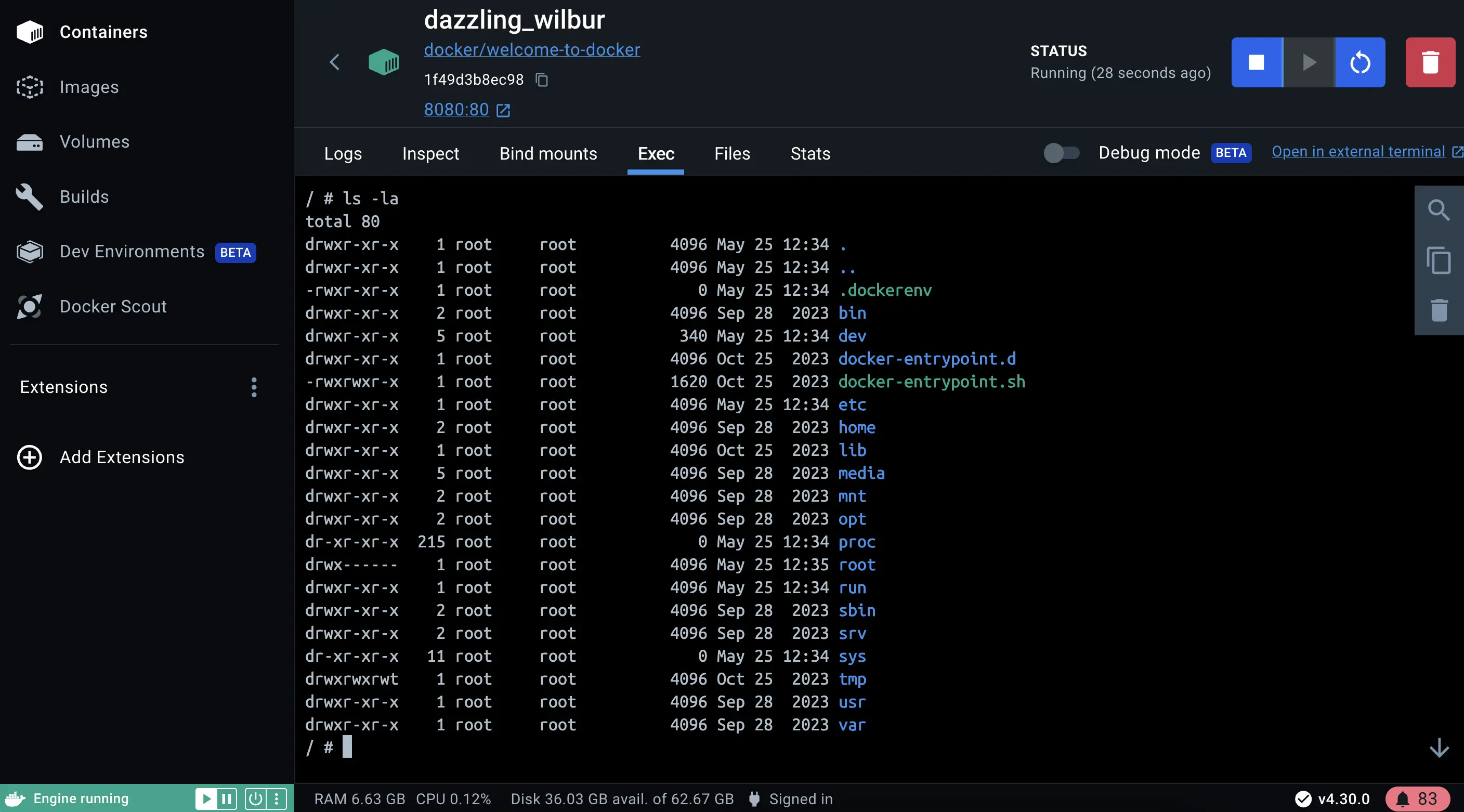
You can view information about your container including logs, and files, and even access the shell by selecting the Exec tab.ログやファイルを含むコンテナに関する情報を表示し、Execタブを選択することでシェルにアクセスすることもできます。
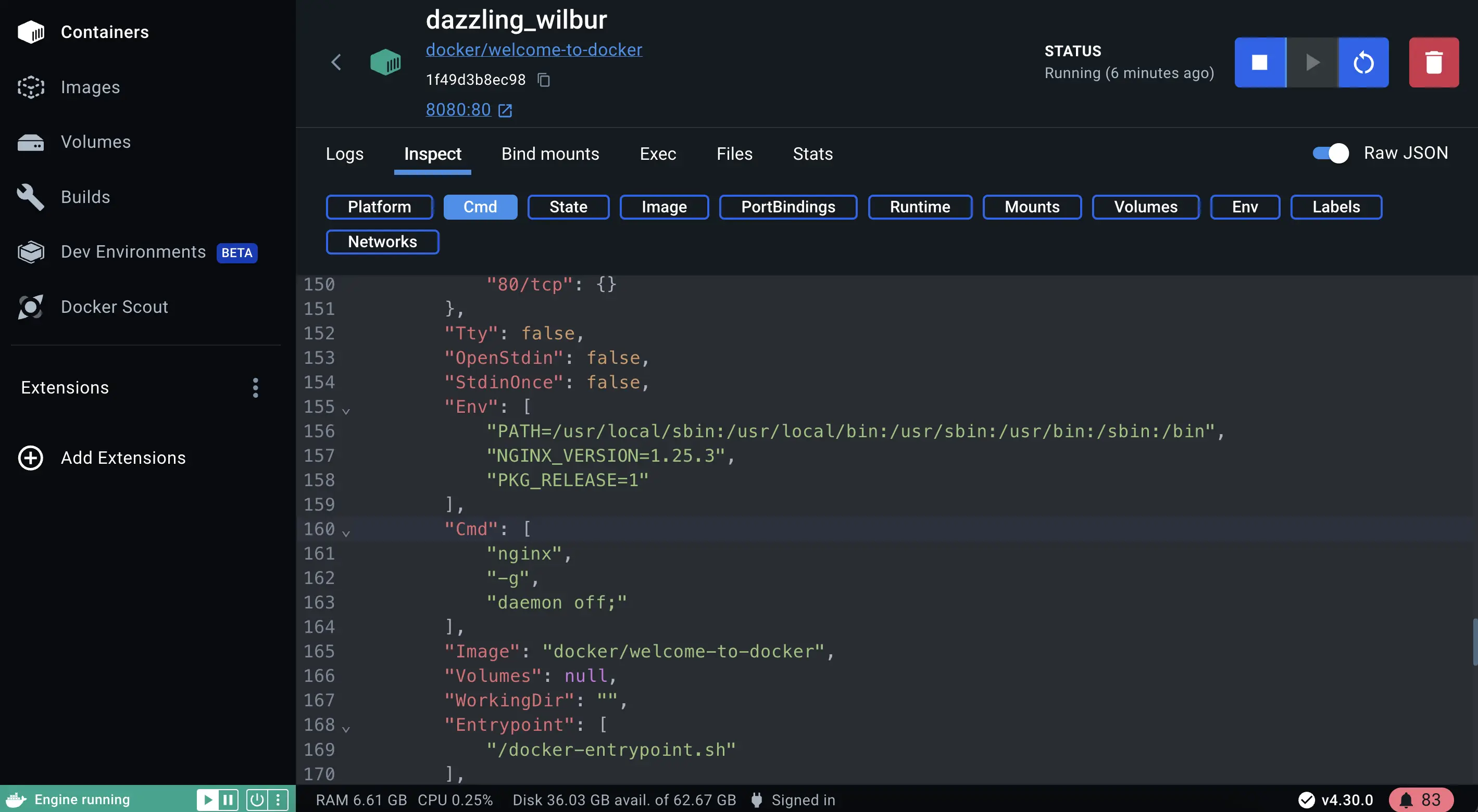
Select the Inspect field to obtain detailed information about the container. You can perform various actions such as pause, resume, start or stop containers, or explore the Logs, Bind mounts, Exec, Files, and Stats tabs.コンテナに関する詳細情報を取得するには、Inspectフィールドを選択します。コンテナの一時停止、再開、開始、停止などのさまざまなアクションを実行したり、Logs、Bind mounts、Exec、Files、およびStatsタブを探索したりできます。
Docker Desktop simplifies container management for developers by streamlining the setup, configuration, and compatibility of applications across different environments, thereby addressing the pain points of environment inconsistencies and deployment challenges.Docker Desktopは、異なる環境間でのアプリケーションのセットアップ、構成、および互換性を簡素化することにより、開発者のためのコンテナ管理を簡単にし、環境の不整合やデプロイメントの課題に対処します。
What's next?次は何ですか?
Now that you have Docker Desktop installed and ran your first container, it's time to start developing with containers.Docker Desktopをインストールし、最初のコンテナを実行したので、コンテナを使用して開発を開始する時が来ました。
Develop with containers
