Multi container appsマルチコンテナアプリ
Up to this point, you've been working with single container apps. But, now you will add MySQL to the application stack. The following question often arises - "Where will MySQL run? Install it in the same container or run it separately?" In general, each container should do one thing and do it well. The following are a few reasons to run the container separately:ここまで、単一コンテナアプリで作業してきました。しかし、これからアプリケーションスタックにMySQLを追加します。次のような質問がよく浮かびます - 「MySQLはどこで実行しますか?同じコンテナにインストールしますか、それとも別々に実行しますか?」一般的に、各コンテナは1つのことを行い、それをうまく行うべきです。以下は、コンテナを別々に実行する理由のいくつかです:
- There's a good chance you'd have to scale APIs and front-ends differently than databases.APIやフロントエンドをデータベースとは異なるスケールで拡張する必要がある可能性が高いです。
- Separate containers let you version and update versions in isolation.別々のコンテナにすることで、バージョン管理やバージョンの更新を独立して行うことができます。
- While you may use a container for the database locally, you may want to use a managed service for the database in production. You don't want to ship your database engine with your app then.ローカルでデータベース用にコンテナを使用することはできますが、本番環境ではデータベース用にマネージドサービスを使用したい場合があります。アプリと一緒にデータベースエンジンを出荷したくはないでしょう。
- Running multiple processes will require a process manager (the container only starts one process), which adds complexity to container startup/shutdown.複数のプロセスを実行するにはプロセスマネージャが必要です(コンテナは1つのプロセスのみを起動します)。これにより、コンテナの起動/シャットダウンが複雑になります。
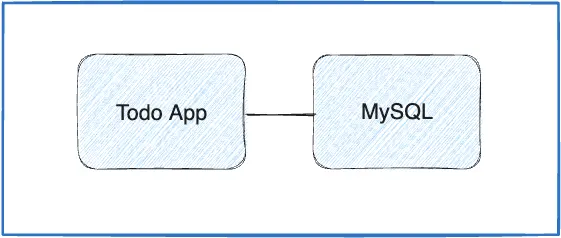
And there are more reasons. So, like the following diagram, it's best to run your app in multiple containers.さらに理由があります。したがって、以下の図のように、アプリを複数のコンテナで実行するのが最適です。
Container networkingコンテナネットワーキング
Remember that containers, by default, run in isolation and don't know anything about other processes or containers on the same machine. So, how do you allow one container to talk to another? The answer is networking. If you place the two containers on the same network, they can talk to each other.コンテナはデフォルトで隔離されて実行され、同じマシン上の他のプロセスやコンテナについて何も知りません。では、1つのコンテナが別のコンテナと通信するにはどうすればよいでしょうか?答えはネットワーキングです。2つのコンテナを同じネットワークに配置すれば、互いに通信できます。
Start MySQLMySQLを起動する
There are two ways to put a container on a network:コンテナをネットワークに接続する方法は2つあります:
- Assign the network when starting the container.コンテナを起動する際にネットワークを割り当てる。
- Connect an already running container to a network.すでに実行中のコンテナをネットワークに接続する。
In the following steps, you'll create the network first and then attach the MySQL container at startup.次の手順では、最初にネットワークを作成し、その後MySQLコンテナを起動時に接続します。
Create the network.ネットワークを作成します。
$ docker network create todo-appStart a MySQL container and attach it to the network. You're also going to define a few environment variables that the database will use to initialize the database. To learn more about the MySQL environment variables, see the "Environment Variables" section in the MySQL Docker Hub listing.MySQLコンテナを起動し、ネットワークに接続します。また、データベースを初期化するために使用されるいくつかの環境変数を定義します。MySQLの環境変数について詳しくは、MySQL Docker Hubのリストの「環境変数」セクションを参照してください。
$ docker run -d \
    --network todo-app --network-alias mysql \
    -v todo-mysql-data:/var/lib/mysql \
    -e MYSQL_ROOT_PASSWORD=secret \
    -e MYSQL_DATABASE=todos \
    mysql:8.0
$ docker run -d ` --network todo-app --network-alias mysql ` -v todo-mysql-data:/var/lib/mysql ` -e MYSQL_ROOT_PASSWORD=secret ` -e MYSQL_DATABASE=todos ` mysql:8.0$ docker run -d ^ --network todo-app --network-alias mysql ^ -v todo-mysql-data:/var/lib/mysql ^ -e MYSQL_ROOT_PASSWORD=secret ^ -e MYSQL_DATABASE=todos ^ mysql:8.0In the previous command, you can see the
--network-aliasflag. In a later section, you'll learn more about this flag.前のコマンドには、--network-aliasフラグが含まれています。後のセクションで、このフラグについてさらに詳しく学びます。TipYou'll notice a volume named
todo-mysql-datain the above command that is mounted at/var/lib/mysql, which is where MySQL stores its data. However, you never ran adocker volume createcommand. Docker recognizes you want to use a named volume and creates one automatically for you.上記のコマンドには、todo-mysql-dataという名前のボリュームが/var/lib/mysqlにマウントされていることに気付くでしょう。これはMySQLがデータを保存する場所です。しかし、docker volume createコマンドを実行したことはありません。Dockerは、名前付きボリュームを使用したいことを認識し、自動的に作成します。To confirm you have the database up and running, connect to the database and verify that it connects.データベースが正常に稼働していることを確認するために、データベースに接続し、接続できることを確認します。
$ docker exec -it <mysql-container-id> mysql -u root -pWhen the password prompt comes up, type in
secret. In the MySQL shell, list the databases and verify you see thetodosdatabase.パスワードプロンプトが表示されたら、secretと入力します。MySQLシェルでデータベースの一覧を表示し、todosデータベースが表示されることを確認します。mysql> SHOW DATABASES;You should see output that looks like this:次のような出力が表示されるはずです:
+--------------------+
| Database           |
+--------------------+
| information_schema |
| mysql              |
| performance_schema |
| sys                |
| todos              |
+--------------------+
5 rows in set (0.00 sec)
Exit the MySQL shell to return to the shell on your machine.MySQLシェルを終了して、あなたのマシンのシェルに戻ります。
mysql> exitYou now have a
todosdatabase and it's ready for you to use.これでtodosデータベースが作成され、使用できる状態になりました。
Connect to MySQLMySQLに接続する
Now that you know MySQL is up and running, you can use it. But, how do you use it? If you run another container on the same network, how do you find the container? Remember that each container has its own IP address.MySQLが正常に稼働していることがわかったので、使用することができます。しかし、どのように使用しますか?同じネットワーク上で別のコンテナを実行する場合、そのコンテナをどのように見つけますか?各コンテナには独自のIPアドレスがあることを思い出してください。
To answer the questions above and better understand container networking, you're going to make use of the nicolaka/netshoot container, which ships with a lot of tools that are useful for troubleshooting or debugging networking issues.上記の質問に答え、コンテナネットワーキングをよりよく理解するために、nicolaka/netshoot コンテナを使用します。このコンテナには、ネットワークの問題をトラブルシューティングまたはデバッグするのに役立つ多くのツールが含まれています。
Start a new container using the nicolaka/netshoot image. Make sure to connect it to the same network.nicolaka/netshoot イメージを使用して新しいコンテナを起動します。同じネットワークに接続されていることを確認してください。
$ docker run -it --network todo-app nicolaka/netshootInside the container, you're going to use the
digcommand, which is a useful DNS tool. You're going to look up the IP address for the hostnamemysql.コンテナ内で、DNSツールとして便利なdigコマンドを使用します。ホスト名mysqlの IP アドレスを調べます。$ dig mysqlYou should get output like the following.次のような出力が得られるはずです。
; <<>> DiG 9.18.8 <<>> mysql
;; global options: +cmd
;; Got answer:
;; ->>HEADER<<- opcode: QUERY, status: NOERROR, id: 32162
;; flags: qr rd ra; QUERY: 1, ANSWER: 1, AUTHORITY: 0, ADDITIONAL: 0

;; QUESTION SECTION:
;mysql.				IN	A

;; ANSWER SECTION:
mysql.			600	IN	A	172.23.0.2

;; Query time: 0 msec
;; SERVER: 127.0.0.11#53(127.0.0.11)
;; WHEN: Tue Oct 01 23:47:24 UTC 2019
;; MSG SIZE  rcvd: 44
In the "ANSWER SECTION", you will see an
Arecord formysqlthat resolves to172.23.0.2(your IP address will most likely have a different value). Whilemysqlisn't normally a valid hostname, Docker was able to resolve it to the IP address of the container that had that network alias. Remember, you used the--network-aliasearlier."ANSWER SECTION" では、mysqlのAレコードが172.23.0.2に解決されるのが表示されます(あなたの IP アドレスはおそらく異なる値になります)。通常、mysqlは有効なホスト名ではありませんが、Docker はそれをそのネットワークエイリアスを持つコンテナの IP アドレスに解決することができました。以前に--network-aliasを使用したことを思い出してください。What this means is that your app only simply needs to connect to a host named
mysqland it'll talk to the database.これは、あなたのアプリが単にmysqlという名前のホストに接続するだけで、データベースと通信できることを意味します。
Run your app with MySQLMySQL でアプリを実行する
The todo app supports the setting of a few environment variables to specify MySQL connection settings. They are:todo アプリは、MySQL 接続設定を指定するためにいくつかの環境変数を設定することをサポートしています。それらは次のとおりです:
MYSQL_HOST- the hostname for the running MySQL serverMYSQL_HOST- 実行中の MySQL サーバーのホスト名MYSQL_USER- the username to use for the connectionMYSQL_USER- 接続に使用するユーザー名MYSQL_PASSWORD- the password to use for the connectionMYSQL_PASSWORD- 接続に使用するパスワードMYSQL_DB- the database to use once connectedMYSQL_DB- 接続後に使用するデータベース
NoteWhile using env vars to set connection settings is generally accepted for development, it's highly discouraged when running applications in production. Diogo Monica, a former lead of security at Docker, wrote a fantastic blog post explaining why.接続設定を環境変数で設定することは、一般的には開発時に受け入れられていますが、 本番環境でアプリケーションを実行する際には強く推奨されません。Dockerの元セキュリティリードであるDiogo Monicaは、 素晴らしいブログ記事 を書いており、その理由を説明しています。
A more secure mechanism is to use the secret support provided by your container orchestration framework. In most cases, these secrets are mounted as files in the running container. You'll see many apps (including the MySQL image and the todo app) also support env vars with a
_FILEsuffix to point to a file containing the variable.より安全なメカニズムは、コンテナオーケストレーションフレームワークが提供するシークレットサポートを使用することです。ほとんどの場合、 これらのシークレットは実行中のコンテナ内のファイルとしてマウントされます。多くのアプリ(MySQLイメージやtodoアプリを含む)は、 変数を含むファイルを指すために_FILEサフィックスを持つ環境変数もサポートしています。As an example, setting the
MYSQL_PASSWORD_FILEvar will cause the app to use the contents of the referenced file as the connection password. Docker doesn't do anything to support these env vars. Your app will need to know to look for the variable and get the file contents.例えば、MYSQL_PASSWORD_FILE変数を設定すると、アプリは参照されたファイルの内容を 接続パスワードとして使用します。Dockerはこれらの環境変数をサポートするために何も行いません。アプリは変数を探し、 ファイルの内容を取得する必要があります。
You can now start your dev-ready container.これで、開発準備が整ったコンテナを起動できます。
Specify each of the previous environment variables, as well as connect the container to your app network. Make sure that you are in the
getting-started-appdirectory when you run this command.前述の環境変数をすべて指定し、コンテナをアプリネットワークに接続します。このコマンドを実行する際は、getting-started-appディレクトリにいることを確認してください。$ docker run -dp 127.0.0.1:3000:3000 \ -w /app -v "$(pwd):/app" \ --network todo-app \ -e MYSQL_HOST=mysql \ -e MYSQL_USER=root \ -e MYSQL_PASSWORD=secret \ -e MYSQL_DB=todos \ node:lts-alpine \ sh -c "yarn install && yarn run dev"In Windows, run this command in PowerShell.Windowsでは、このコマンドをPowerShellで実行します。
$ docker run -dp 127.0.0.1:3000:3000 `
  -w /app -v "$(pwd):/app" `
  --network todo-app `
  -e MYSQL_HOST=mysql `
  -e MYSQL_USER=root `
  -e MYSQL_PASSWORD=secret `
  -e MYSQL_DB=todos `
  node:lts-alpine `
  sh -c "yarn install && yarn run dev"
In Windows, run this command in Command Prompt.Windowsでは、このコマンドをコマンドプロンプトで実行します。
$ docker run -dp 127.0.0.1:3000:3000 ^
  -w /app -v "%cd%:/app" ^
  --network todo-app ^
  -e MYSQL_HOST=mysql ^
  -e MYSQL_USER=root ^
  -e MYSQL_PASSWORD=secret ^
  -e MYSQL_DB=todos ^
  node:lts-alpine ^
  sh -c "yarn install && yarn run dev"
$ docker run -dp 127.0.0.1:3000:3000 \ -w //app -v "/$(pwd):/app" \ --network todo-app \ -e MYSQL_HOST=mysql \ -e MYSQL_USER=root \ -e MYSQL_PASSWORD=secret \ -e MYSQL_DB=todos \ node:lts-alpine \ sh -c "yarn install && yarn run dev"If you look at the logs for the container (
docker logs -f <container-id>), you should see a message similar to the following, which indicates it's using the mysql database.コンテナのログを確認すると(docker logs -f <container-id>)、次のようなメッセージが表示されるはずです。 これはmysqlデータベースを使用していることを示しています。$ nodemon src/index.js [nodemon] 2.0.20 [nodemon] to restart at any time, enter `rs` [nodemon] watching dir(s): *.* [nodemon] starting `node src/index.js` Connected to mysql db at host mysql Listening on port 3000Open the app in your browser and add a few items to your todo list.ブラウザでアプリを開き、todoリストにいくつかのアイテムを追加します。
Connect to the mysql database and prove that the items are being written to the database. Remember, the password is
secret.mysqlデータベースに接続し、アイテムがデータベースに書き込まれていることを確認します。パスワードはsecretです。$ docker exec -it <mysql-container-id> mysql -p todosAnd in the mysql shell, run the following:そして、mysqlシェルで次のコマンドを実行します:
mysql> select * from todo_items;
+--------------------------------------+--------------------+-----------+
| id                                   | name               | completed |
+--------------------------------------+--------------------+-----------+
| c906ff08-60e6-44e6-8f49-ed56a0853e85 | Do amazing things! |         0 |
| 2912a79e-8486-4bc3-a4c5-460793a575ab | Be awesome!        |         0 |
+--------------------------------------+--------------------+-----------+
Your table will look different because it has your items. But, you should see them stored there.あなたのテーブルは異なる形になるでしょうが、そこにアイテムが保存されているのを見ることができるはずです。
Summary概要
At this point, you have an application that now stores its data in an external database running in a separate container. You learned a little bit about container networking and service discovery using DNS.この時点で、外部データベースにデータを保存するアプリケーションができました。コンテナネットワーキングとDNSを使用したサービスディスカバリーについて少し学びました。
Related information:関連情報:
Next steps次のステップ
There's a good chance you are starting to feel a little overwhelmed with everything you need to do to start up this application. You have to create a network, start containers, specify all of the environment variables, expose ports, and more. That's a lot to remember and it's certainly making things harder to pass along to someone else.このアプリケーションを起動するために必要なすべてのことに圧倒され始めている可能性が高いです。ネットワークを作成し、コンテナを起動し、すべての環境変数を指定し、ポートを公開し、その他もろもろを行う必要があります。それは覚えておくには多すぎて、他の人に引き継ぐのも確かに難しくなっています。
In the next section, you'll learn about Docker Compose. With Docker Compose, you can share your application stacks in a much easier way and let others spin them up with a single, simple command.次のセクションでは、Docker Composeについて学びます。Docker Composeを使用すると、アプリケーションスタックをはるかに簡単に共有でき、他の人が単一の簡単なコマンドでそれらを起動できるようになります。
Use Docker Compose
